

 ERPNext
ZATCA Phase 2 e-invoicing inside ERPNext
Your sales invoices are signed, cleared or reported to ZATCA (Fatoora) from ERPNext, with the QR code on the print and every reply from the authority kept on the invoice.
- Clearance for B2B, reporting for B2C
- Onboarding per company and branch
- Every attempt and reply logged
- QR code on the printed invoice
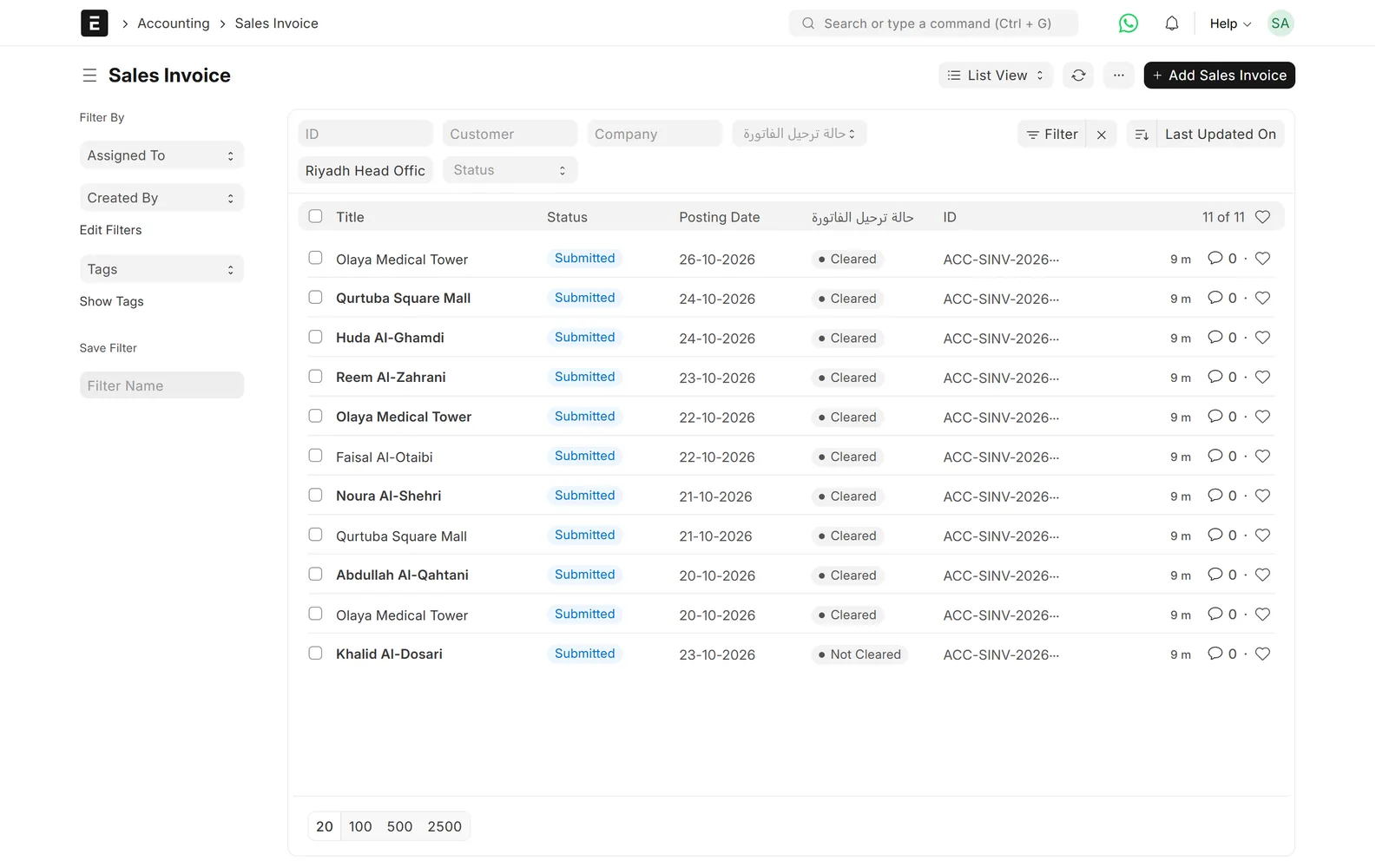
Sales invoices with their ZATCA clearance status
Problem → outcome
What changes with Phase 2 handled inside ERPNext
-
Without the integrationInvoices are uploaded through a separate toolWith the Data Value integrationInvoices go to ZATCA from ERPNext: on submit, every hour or once a night, as you choose.
-
Without the integrationRejections are found too lateWith the Data Value integrationEach attempt is stored on the invoice with ZATCA’s errors and warnings, shown in Arabic with the original text.
-
Without the integrationSimplified invoices miss the 24-hour windowWith the Data Value integrationAn optional check flags simplified invoices that are close to the 24-hour limit.
-
Without the integrationCleared invoices get cancelled by mistakeWith the Data Value integrationAn invoice cleared by ZATCA cannot be cancelled in ERPNext; corrections go through credit or debit notes with a reason.
What is sent
What moves between ERPNext and ZATCA
ERPNext
Sales invoices, credit and debit notes
- Certificate request (CSR) and keysERPNext → ZATCACompliance and production CSIDsonce per branch, at onboarding
- Standard tax invoices (B2B)ERPNext → ZATCAClearance, then the cleared invoice and QRon submit, hourly or nightly
- Simplified invoices (B2C)ERPNext → ZATCAReportingon submit, hourly or nightly
- Credit and debit notesERPNext → ZATCAClearance or reporting, with the reasonlike invoices
- ZATCA replyZATCA → ERPNextStatus, warnings and errors on the invoicewith every attempt
ZATCA
Fatoora: compliance, clearance and reporting
Features
What you get, screen by screen
Real screens from our demo site, with a fictional demo company.
Status
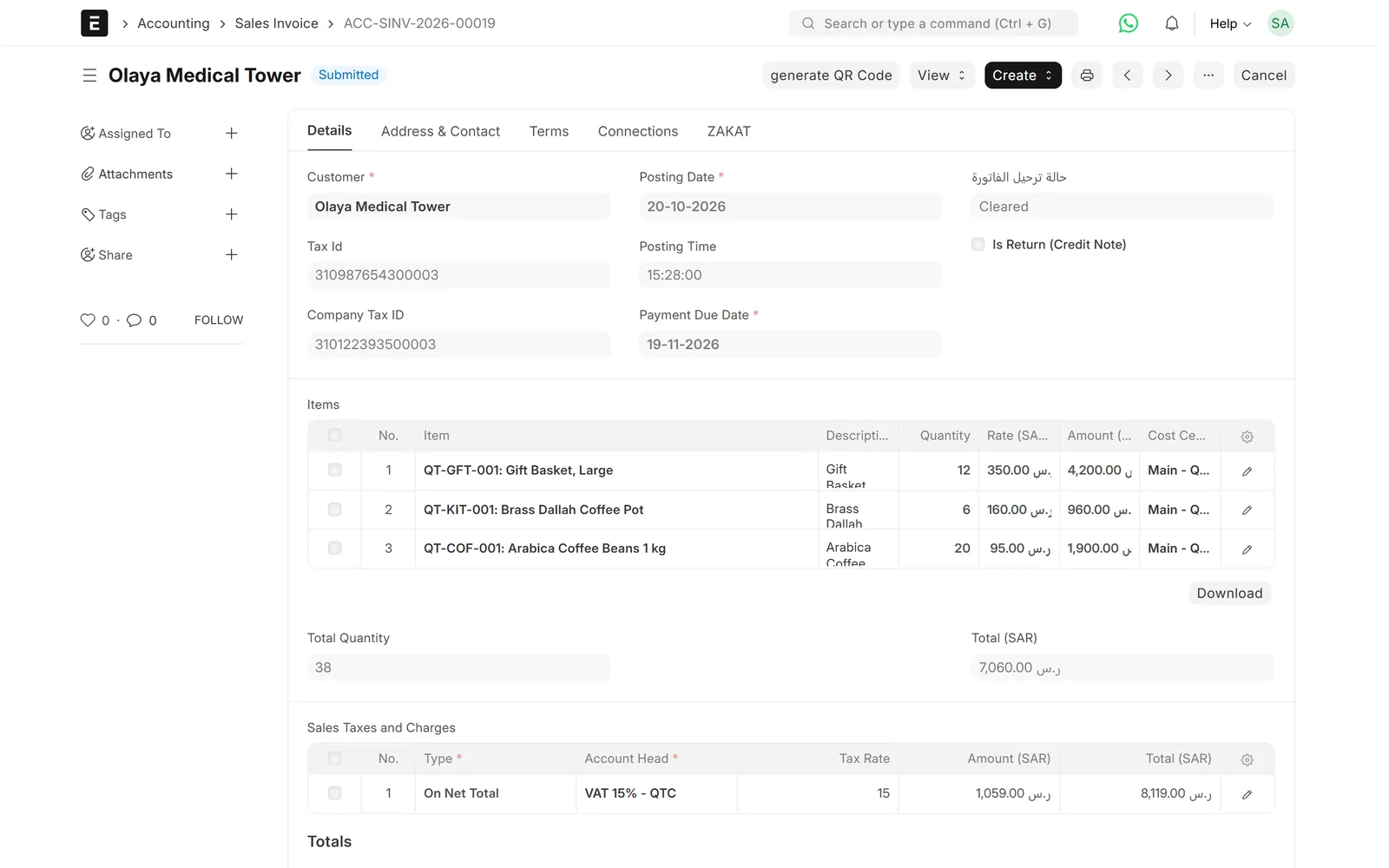
You see the status on every invoice
The clearance status sits on the invoice and is read-only, so nobody edits it by hand.
- Cleared invoices cannot be cancelled
- Invoice counter (ICV) and previous hash (PIH) kept
- Customer ID type, CR and national ID supported

Errors
Errors you can act on
Each attempt is listed on the invoice with ZATCA’s messages, translated to Arabic next to the original.
- Rejected, accepted and accepted-with-warnings
- Upload again with one click
- XML and reply kept for audit

QR code on the invoice
The QR code returned for the invoice is attached to it and printed on your invoice format.
- Arabic and English print
- Seller and buyer VAT numbers
- Totals with and without VAT
Onboarding
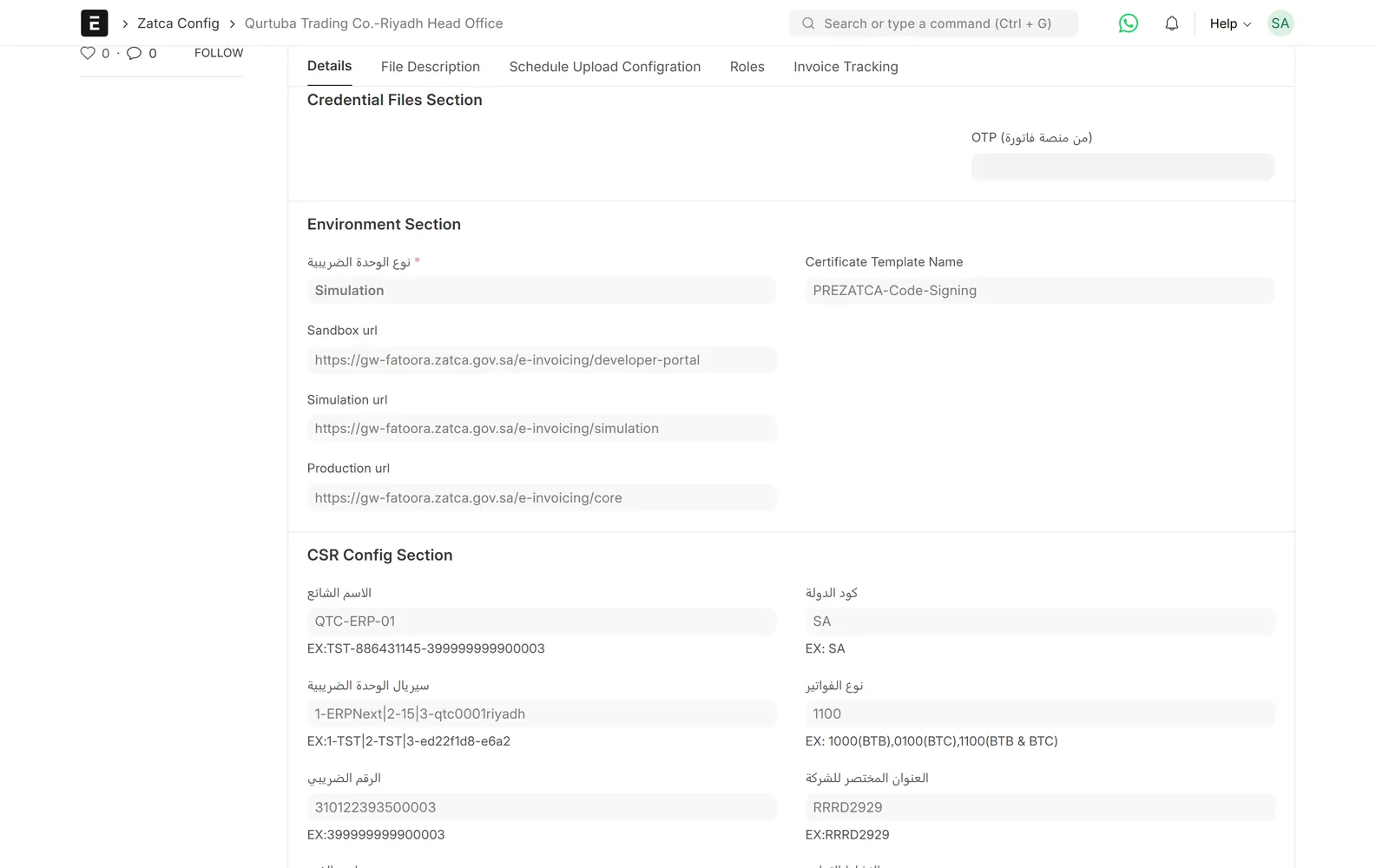
Onboarding in five steps
From the branch data, keys and CSR, through test invoices, to the production certificate, all run from the settings screen.
- Sandbox, simulation and production
- One setting per company branch
- Role that may upload invoices
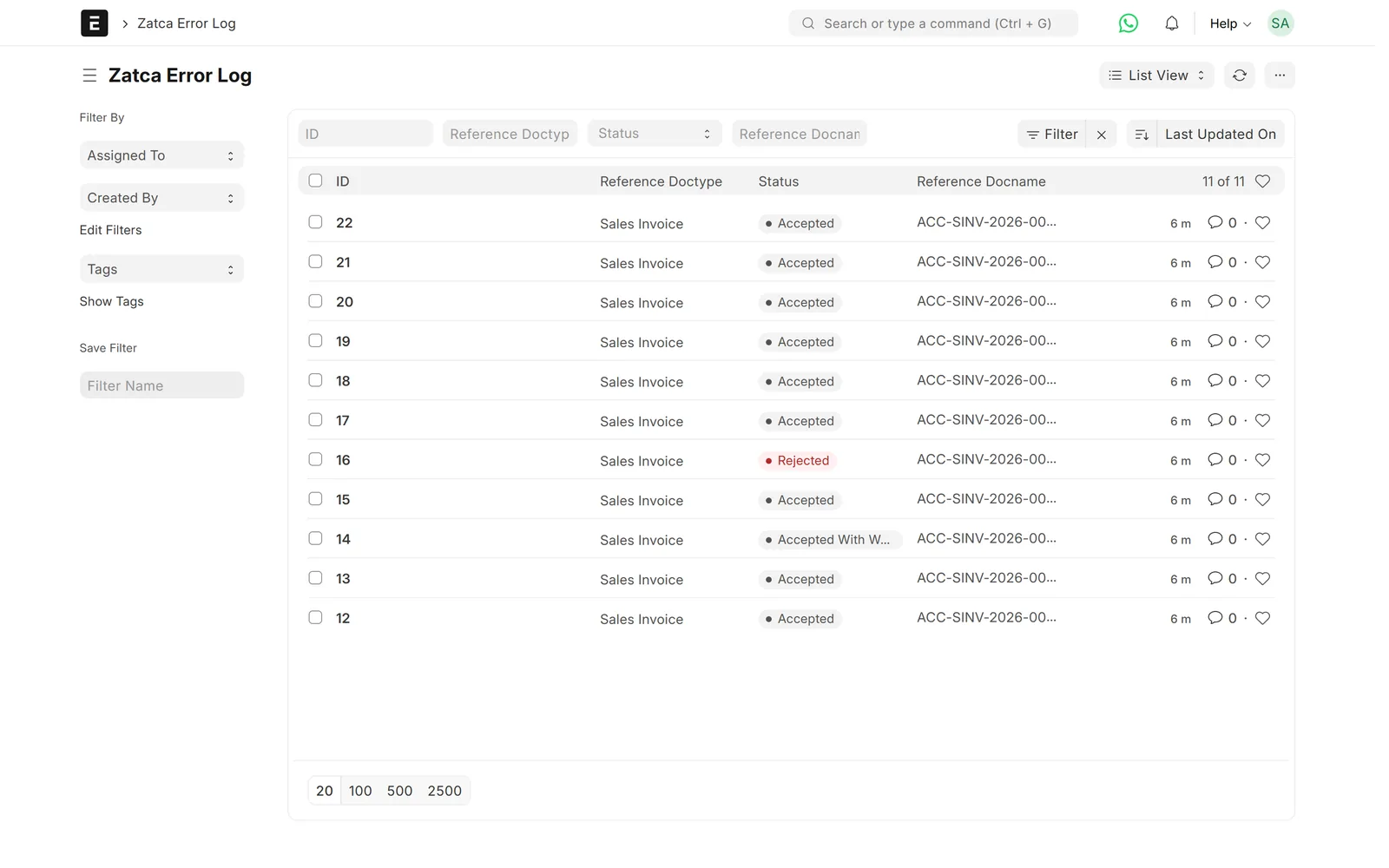
Audit
A full log of requests
Every request to ZATCA is stored with the signed XML and the full reply.
- Filter by status or invoice
- Kept for audits and support
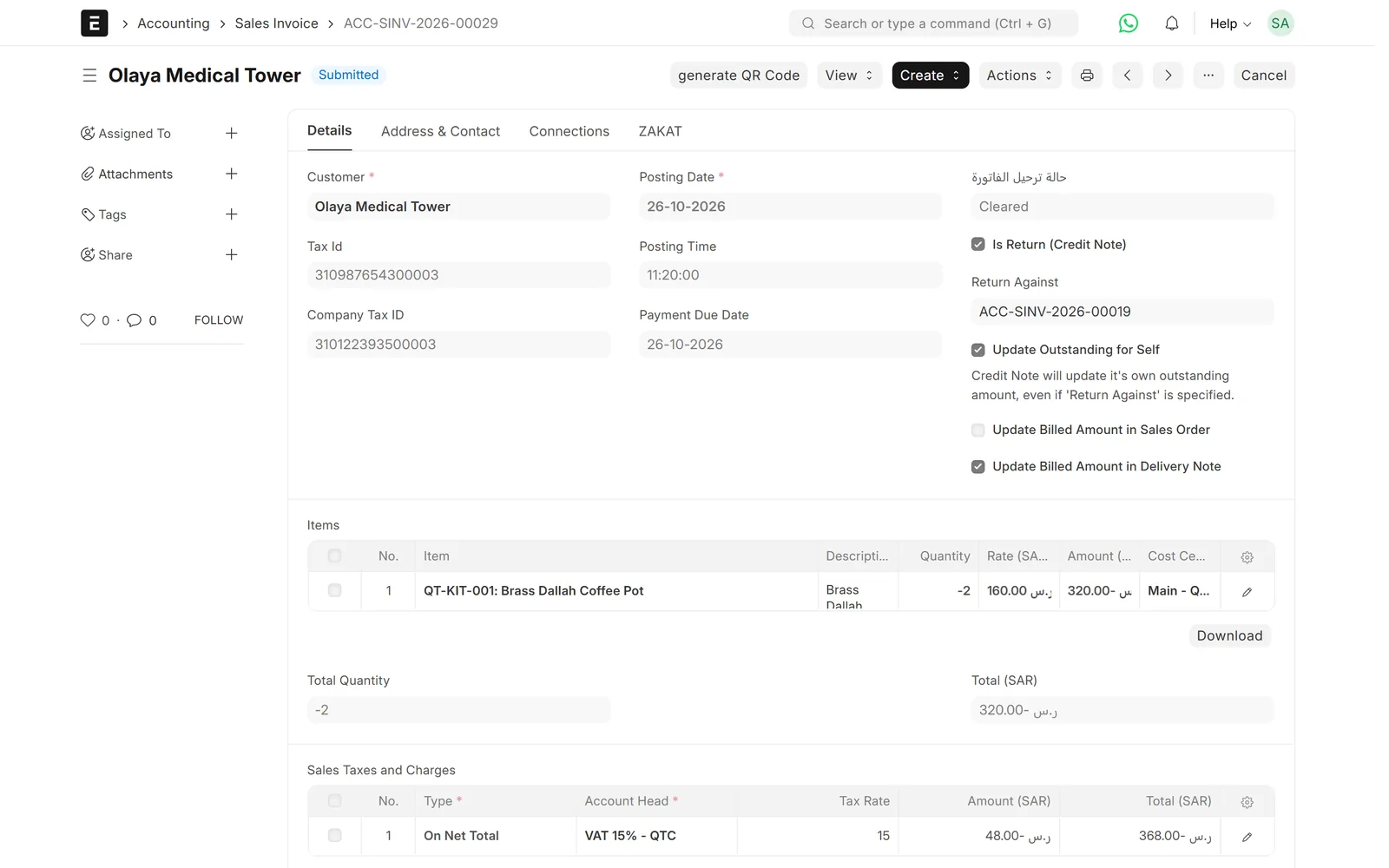
Returns
Credit and debit notes
Returns are cleared or reported like invoices, with a mandatory reason.
- Linked to the original invoice
- Tax categories S, Z, E and O with exemption reasons
Limits & versions
What it does not do (yet)
Versions and setup
- ERPNext and Frappe v15.
- One setting per company and ZATCA branch (commercial registration).
- The OTP for onboarding comes from your Fatoora portal account.
- Discounts are applied on the net total, as ZATCA requires.
Not covered
- Phase 1 only sites: use the Phase 1 QR code app instead.
- Invoices issued outside ERPNext.
- Zid store invoices: that is a separate service, “Zid invoices to ZATCA”.
Setup
How we set it up
- ScopeWe go through your current process, the documents you need and the settings on the other side.
- ConnectYou get the OTP from the Fatoora portal, and we onboard each branch: keys, CSR, compliance checks and production certificate.
- MapWe map tax categories, exemption reasons and customer ID types, and set when invoices are uploaded.
- Test on your dataWe run real cases on a test copy of your site before go-live.
- Go live and supportWe switch it on and support it under a support agreement.
Related
Works together with
Integrations
Related connectors
ERPNext modules
Runs on these modules
FAQ
Frequently asked questions
Does it handle both clearance and reporting?
Yes. Standard tax invoices (B2B) are cleared and simplified invoices (B2C) are reported, including credit and debit notes.
Can I run several companies or branches?
Yes. Each company branch, by commercial registration, has its own ZATCA settings and certificate.
When are invoices sent to ZATCA?
On submit, every hour, or once a night at 11 pm. You choose per branch, and you can also send one invoice by hand.
What happens when ZATCA rejects an invoice?
The attempt is saved on the invoice with ZATCA’s errors, shown in Arabic with the original text. You fix the cause and send it again.
Does it work on ERPNext v16?
This page covers ERPNext v15, where it runs today. Ask us if you are on another version.
How much does it cost?
Prices are on request. They depend on the number of companies and branches and on your setup.
ZATCA Phase 2 ⇄ ERPNext
See ZATCA Phase 2 running in ERPNext
Book a demo and we will walk you through clearance, reporting and the logs on real-looking invoices.
Free demo · No commitment · Prices on request