

 ERPNext
ZKTeco attendance devices connected to ERPNext
Fingerprint and face punches from ZKTeco devices reach ERPNext through your ZKBioTime server and become Employee Checkins, with device health and missed records handled for you.
- Punches pulled through ZKBioTime
- Device online status watched
- Missed records fetched again
- Overtime from the check-ins
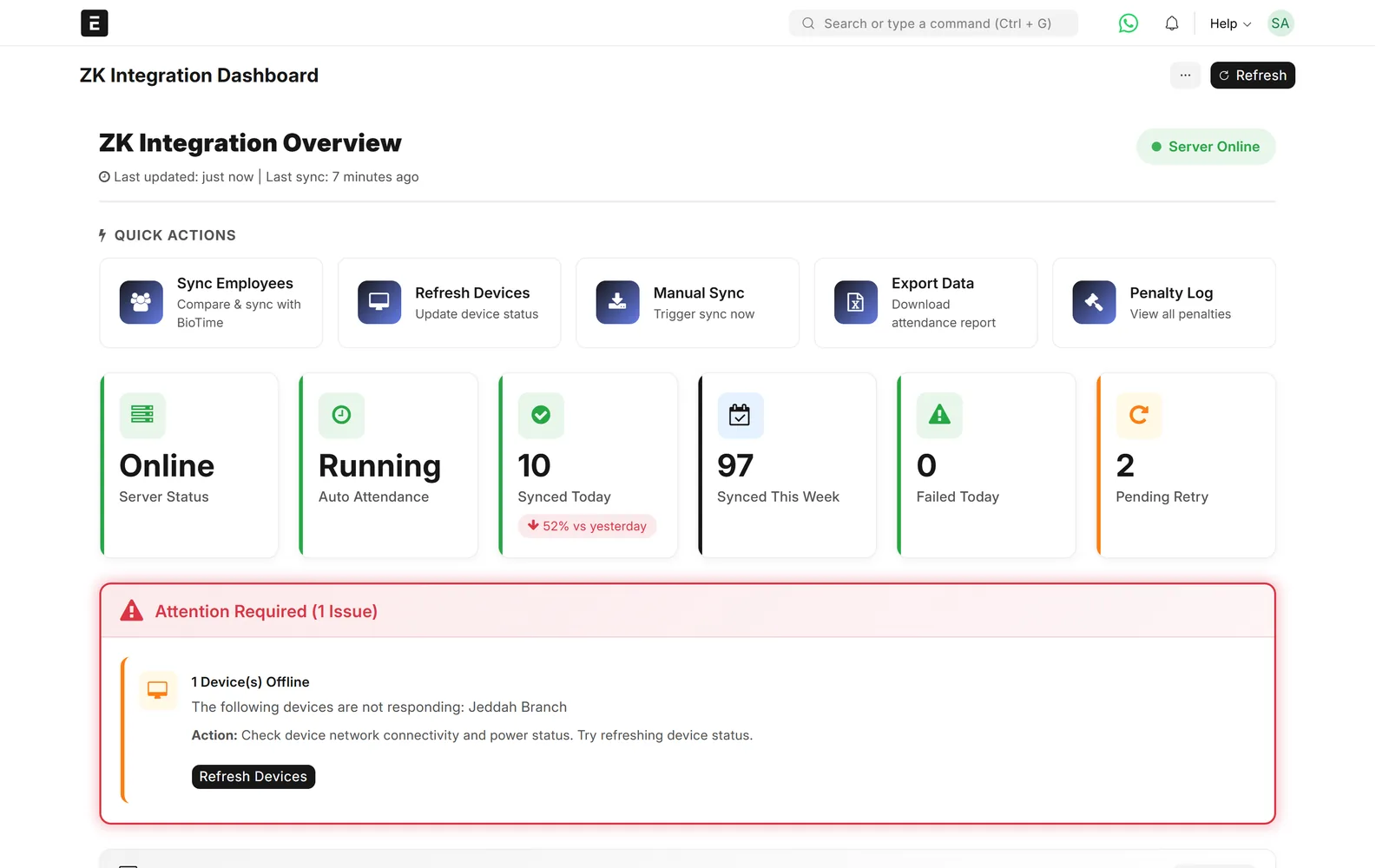
ZK Integration dashboard: server, devices and today’s punches
Problem → outcome
What changes when your devices feed ERPNext
-
Without the connectorAttendance is exported from the device and imported by handWith the Data Value connectorPunches are pulled from ZKBioTime on a schedule and saved as Employee Checkins.
-
Without the connectorA device goes offline and nobody noticesWith the Data Value connectorThe dashboard shows each device online or offline, and device alerts can be emailed.
-
Without the connectorRecords are lost after a network outageWith the Data Value connectorFailed records go to a retry queue, and missed pages are fetched again by date.
-
Without the connectorOvertime is counted in a spreadsheetWith the Data Value connectorOvertime is worked out from the check-ins and can be approved before payroll.
What syncs
What moves, and in which direction
ZKBioTime
ZKTeco devices, areas and punches
- Punches (check in, check out)ZKBioTime → ERPNextZk Attendance and Employee Checkinon a schedule
- Device list and statusZKBioTime → ERPNextDevices in the ZK configurationchecked regularly
- New and changed employeesERPNext → ZKBioTimeEmployee in ZKBioTime (optional)on save
- Failed records↻ RetryRetry queueretried automatically
- Check-insZKBioTime → ERPNextOvertime and penalty logsfrom your rules
ERPNext
Employees, check-ins, attendance and payroll
Features
What you get, screen by screen
Real screens from our demo site, with a fictional demo company.
Punches
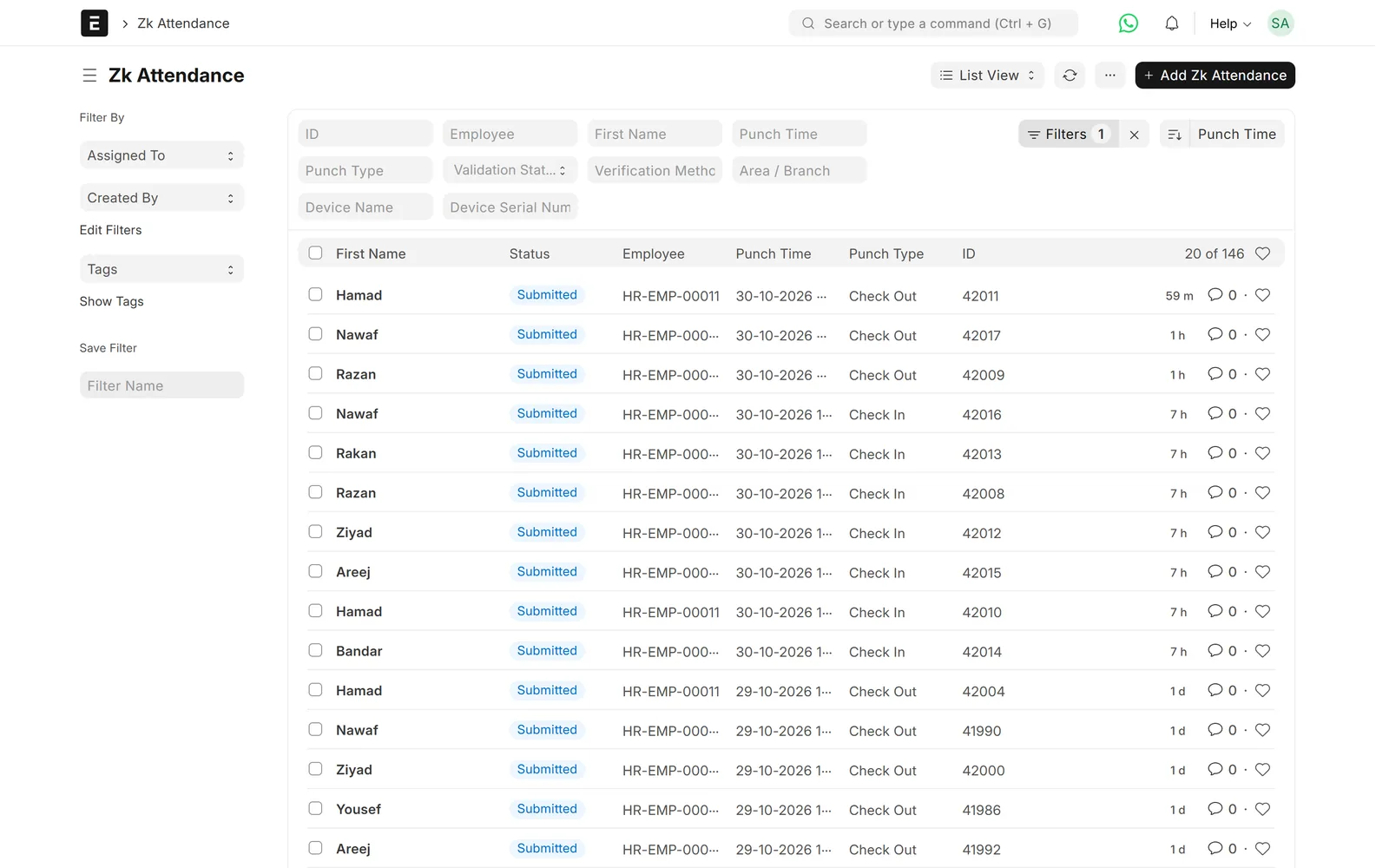
Every punch is kept
Each punch is saved with the employee, the device, the area and how the person was verified.
- Face or fingerprint
- Valid and invalid punches separated
- Duplicate punches skipped within a few minutes

Devices
You see which devices are online
Devices are listed with their area and last check, and offline ones are flagged.
- Online and offline at a glance
- Seven-day sync trend
- Optional email alerts
Activity
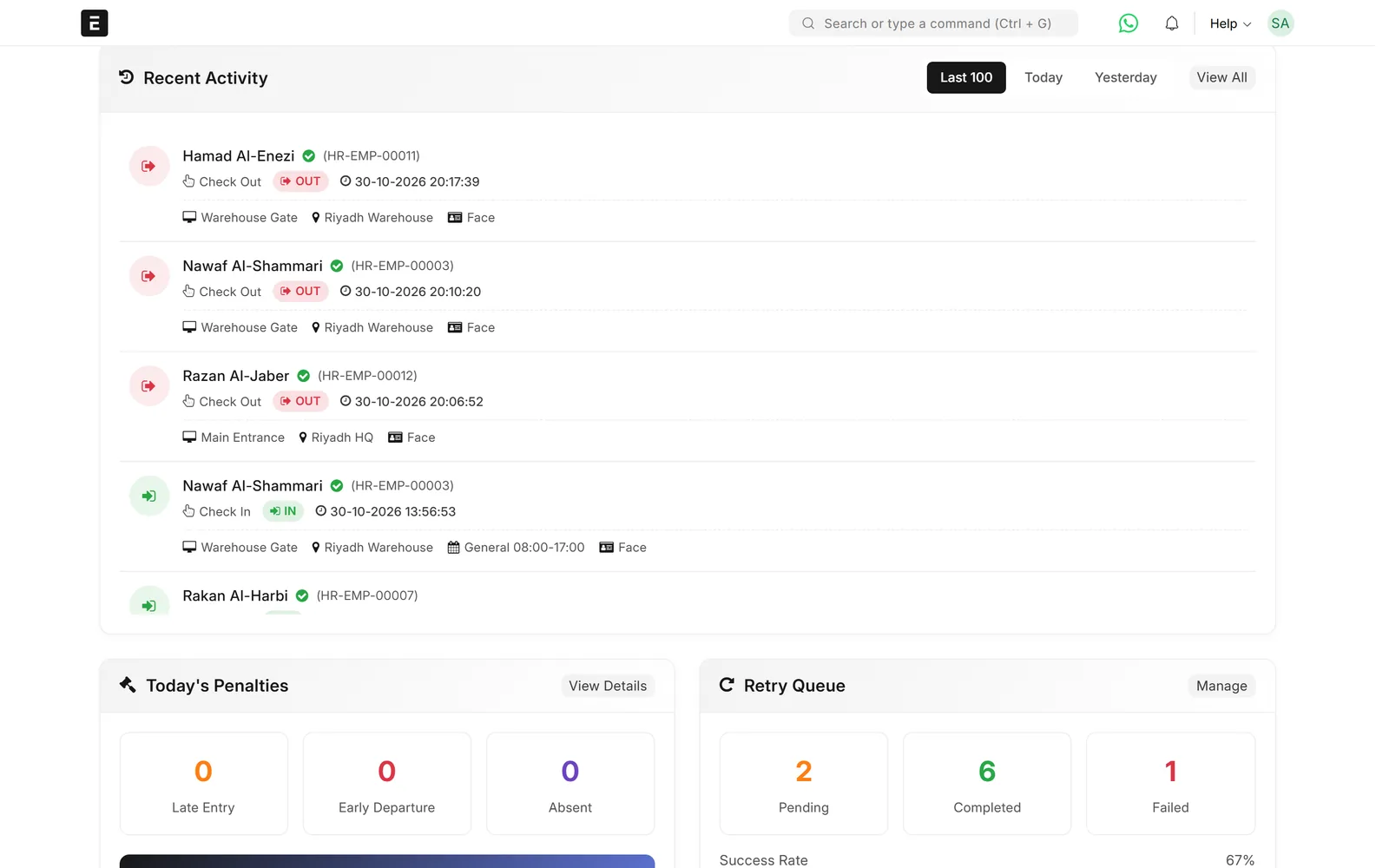
Who punched, where and how
The latest punches show the employee, check in or out, the device and the shift.
- Filter today, yesterday or the last 100
- Hourly punch distribution
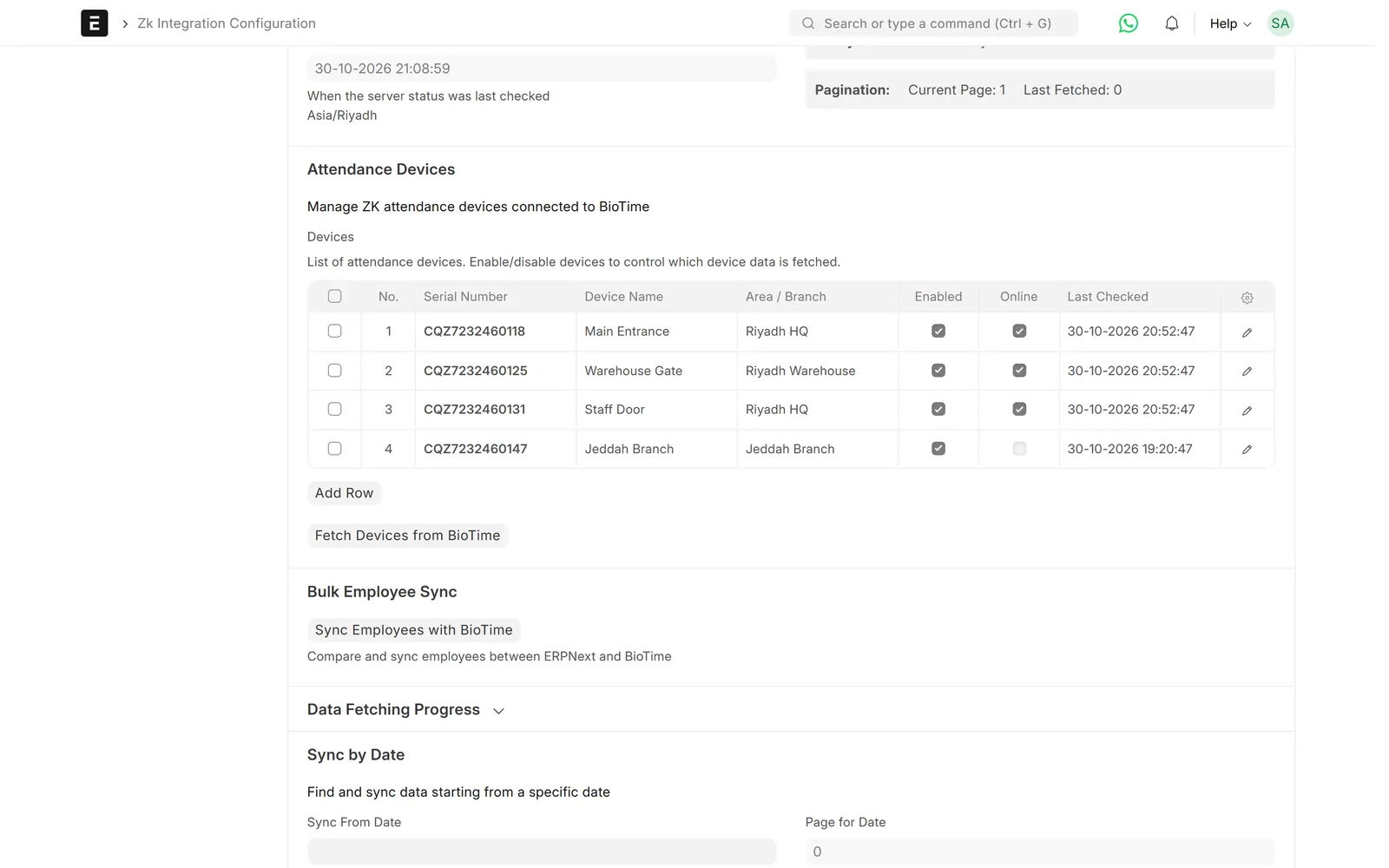
Setup
Devices and server in one place
The ZKBioTime server, sync options and devices are set on one configuration screen.
- Fetch devices from ZKBioTime
- Sync employees with ZKBioTime
- Find and resync from a date

Overtime
Overtime from the check-ins
Overtime is calculated from the punches and goes through approval before it is paid.
- Pending, approved, rejected and paid
- Rates by day type
- Additional Salary for payroll
Limits & versions
What it does not do (yet)
Versions and setup
- ERPNext with Frappe HR (HRMS).
- Devices must be registered on a ZKBioTime server that ERPNext can reach.
- Employees are matched by their attendance device ID.
- An API user on ZKBioTime is needed.
Not covered
- ZKTeco devices that are not on ZKBioTime: ask us about a direct connection.
- Hikvision terminals: a separate connector.
- Access control rules on the devices.
Setup
How we set it up
- ScopeWe go through your current process, the documents you need and the settings on the other side.
- ConnectWe connect ERPNext to your ZKBioTime server with an API user and fetch the devices.
- MapWe match employees by device ID, set shifts, duplicate rules and, if you want, overtime and penalties.
- Test on your dataWe run real cases on a test copy of your site before go-live.
- Go live and supportWe switch it on and support it under a support agreement.
Related
Works together with
ERPNext modules
Runs on these modules
Services
We take care of
FAQ
Frequently asked questions
Do I need ZKBioTime?
Yes. This connector reads punches from a ZKBioTime server, which collects them from your ZKTeco devices.
What happens when a device or the network is down?
The device shows as offline on the dashboard, failed records go to a retry queue, and missed records are fetched again once the connection is back.
Are duplicate punches a problem?
No. Punches by the same employee within a few minutes, which you set, are skipped.
Does it work with face and fingerprint devices?
Yes. The verification type, face or fingerprint, is saved with each punch.
How much does it cost?
Prices are on request. They depend on the number of devices and branches and on the HR rules you need.
ZKTeco devices ⇄ ERPNext
See your attendance devices feeding ERPNext
Book a demo and we will show you punches, device status and overtime from ZKTeco devices.
Free demo · No commitment · Prices on request