Skip to content

Finance · Saudi Arabia & Egypt

Every cheque, from receipt to clearance, tracked inside ERPNext

Cheque Management is Data Value's own app that adds the full post-dated cheque cycle to ERPNext's Payment Entry, for cheques you receive from customers and cheques you issue to suppliers and employees.

Each step posts a balanced journal entry, so your ledger always shows where every cheque is: in the drawer, at the bank, endorsed, bounced or collected.

  • Built on the standard Payment Entry
  • A journal entry for every step
  • Endorse to suppliers or employees
  • Ageing, dashboard and overdue alerts
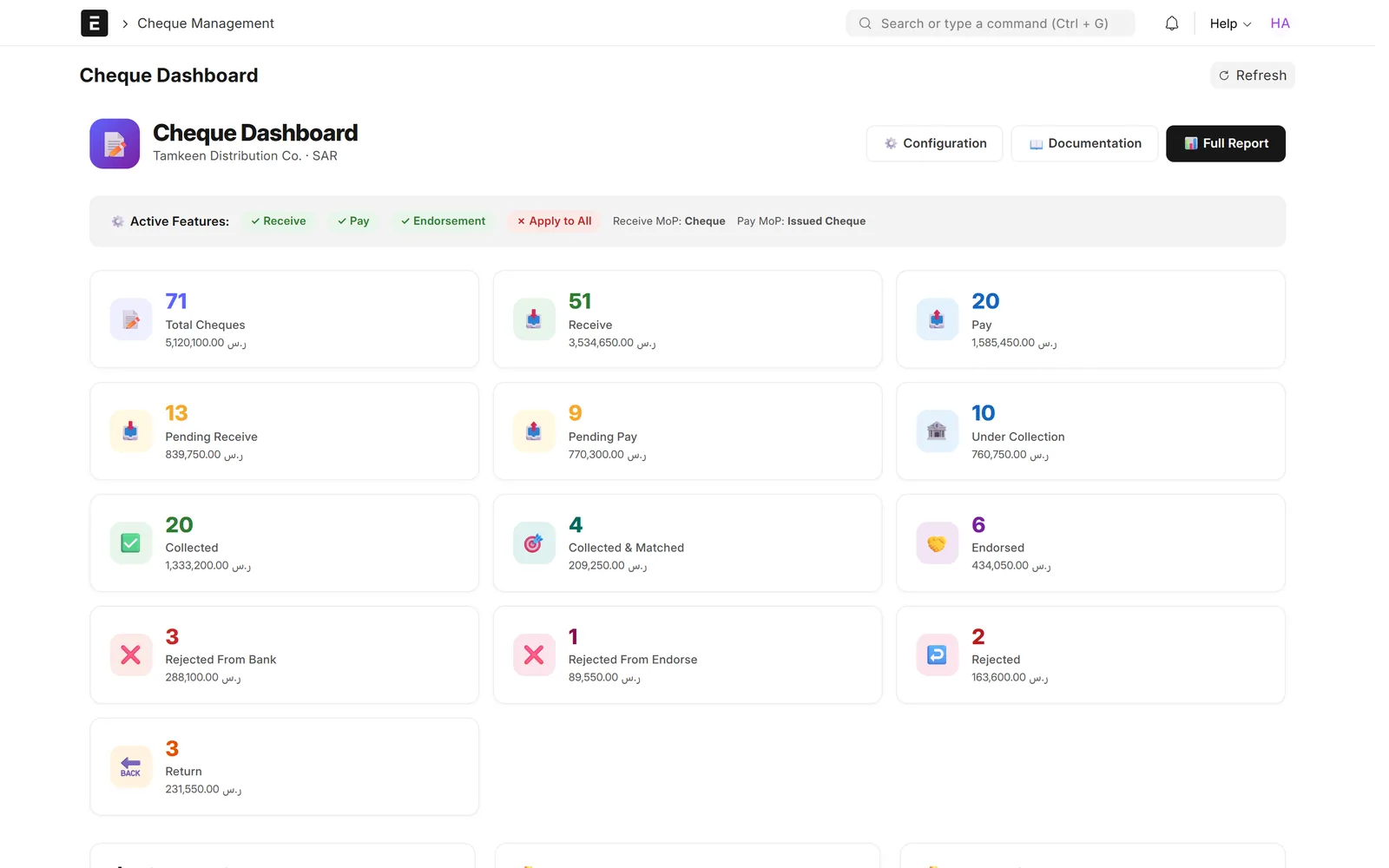
Cheque dashboard with cards for total, received and issued cheques and for pending, under collection, collected, endorsed, rejected and returned cheques
Cheque dashboard: counts and values for every status. Screens show demo data.

Who it is for

Built for the people who run it every day

  • Distributors and wholesalers
  • Contracting companies
  • Real estate companies
  • Finance managers and accountants
  • Treasury teams working with several banks
  • Companies on ERPNext tracking cheques in spreadsheets

Industry

Part of ERPNext for Trading & Distribution

Cheque Management is built for distributors and wholesalers that collect and pay by post-dated cheque.

Explore the industry page →

What you get

What you get with Cheque Management

9 capabilities in 3 groups, each shown next to its screen in the real system.

Cheque cycle

Cheques live on the standard Payment Entry

Any Payment Entry with your cheque mode of payment becomes a tracked cheque.

  • No separate cheque register to keep in sync
  • Cheque status shown on the Payment Entry
  • A Cheque Management button group on the form
  • Works for received and issued cheques
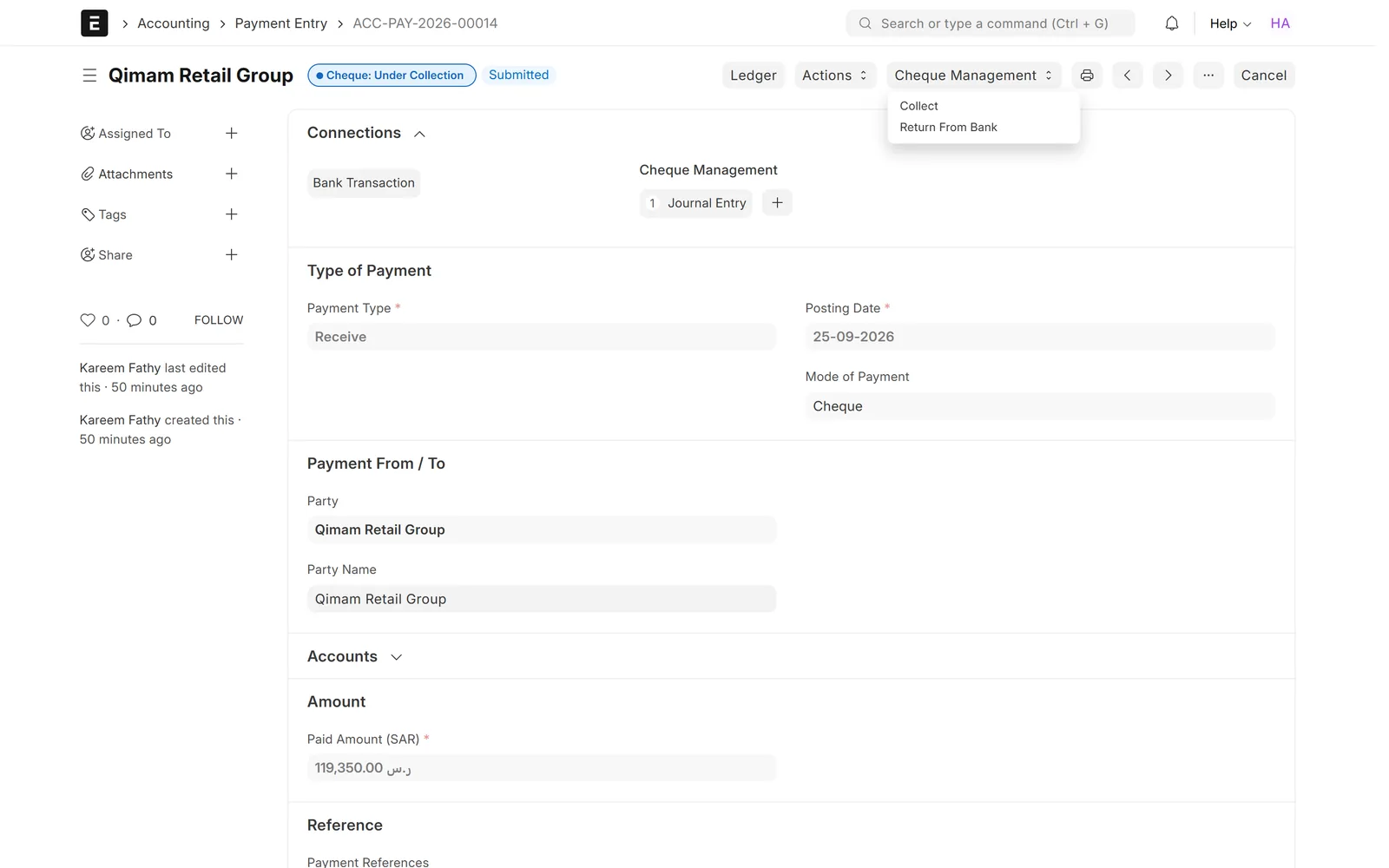
Payment Entry for a received cheque marked Cheque: Under Collection, with the Cheque Management menu open on Collect and Return From Bank and one linked journal entry
Cheque actions right on the Payment Entry

Cheque cycle

The full received-cheque cycle

Eight actions, each allowed only from the right status.

  • Send to bank, collect and return from bank
  • Resend to bank or return to the customer
  • Endorse, return endorsed and re-endorse
  • Optional setting to skip the under-collection step
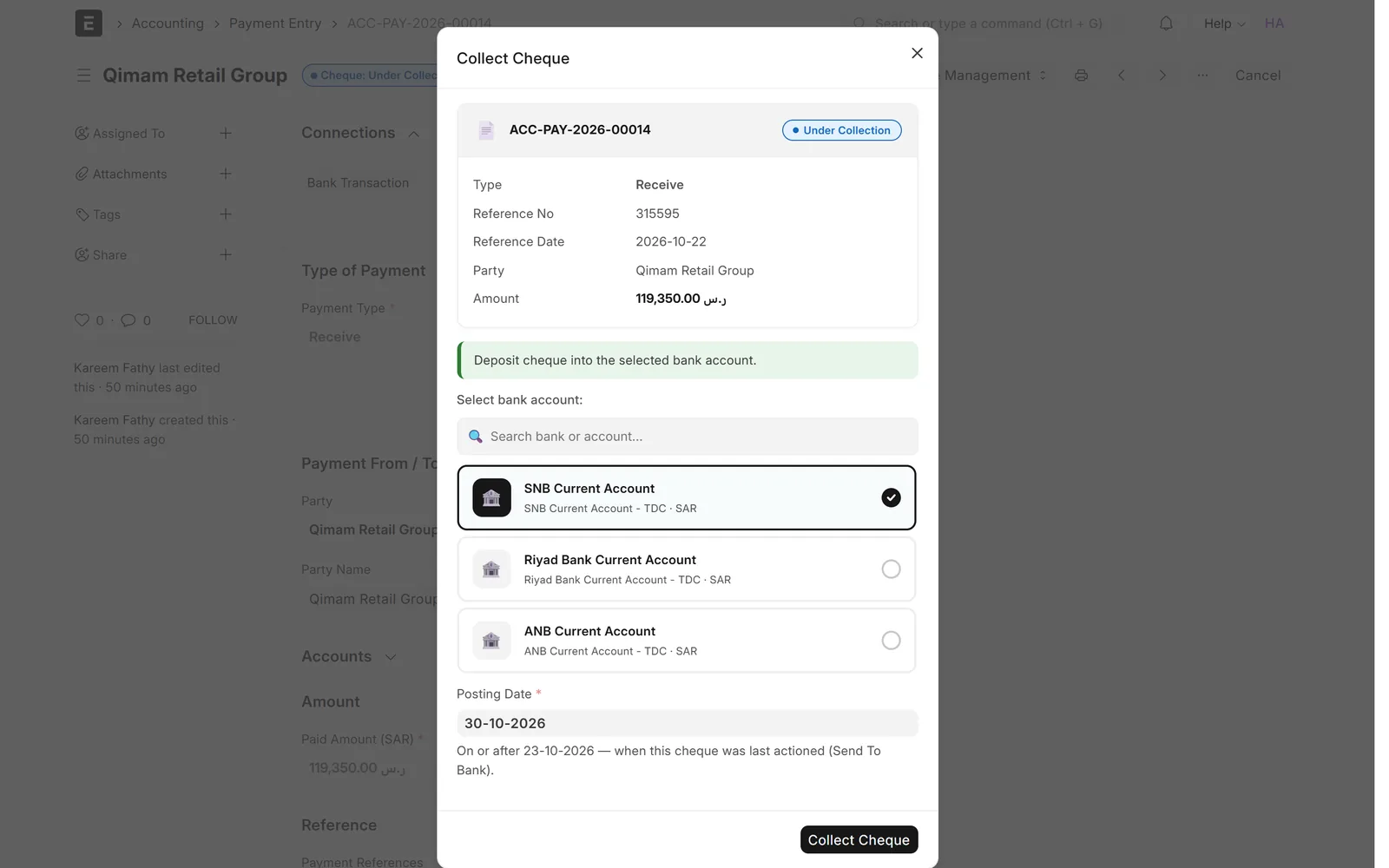
Collect Cheque dialog showing the cheque details, three bank account cards with one selected, and a posting date that must be on or after the last action
Collect a cheque into the bank account you choose

Cheque cycle

Endorsement to suppliers, employees or accounts

Pass a customer's cheque on instead of depositing it.

  • Endorse to a supplier
  • Endorse to an employee
  • Endorse to a ledger account
  • The party is recorded on the journal entry line
Endorse dialog for a pending cheque with the supplier list filtered by search, one supplier selected and the posting date
Endorse a customer's cheque to a supplier

Cheque cycle

Issued cheques too

Follow the cheques you write as well as the ones you receive.

  • Issued cheques held in Notes Payable
  • Mark as collected against the bank drawn on
  • Mark as returned to restore the party balance
  • Each action posts its journal entry
Payment Entry for a received cheque marked Cheque: Under Collection, with the Cheque Management menu open on Collect and Return From Bank and one linked journal entry
Cheque actions right on the Payment Entry

Accounting & control

A journal entry for every step

Every cheque action posts its own balanced journal entry.

  • A two-line entry for each action
  • Linked to its Payment Entry
  • Listed in the Payment Entry's connections
  • Cancelling the Payment Entry cancels its cheque entries
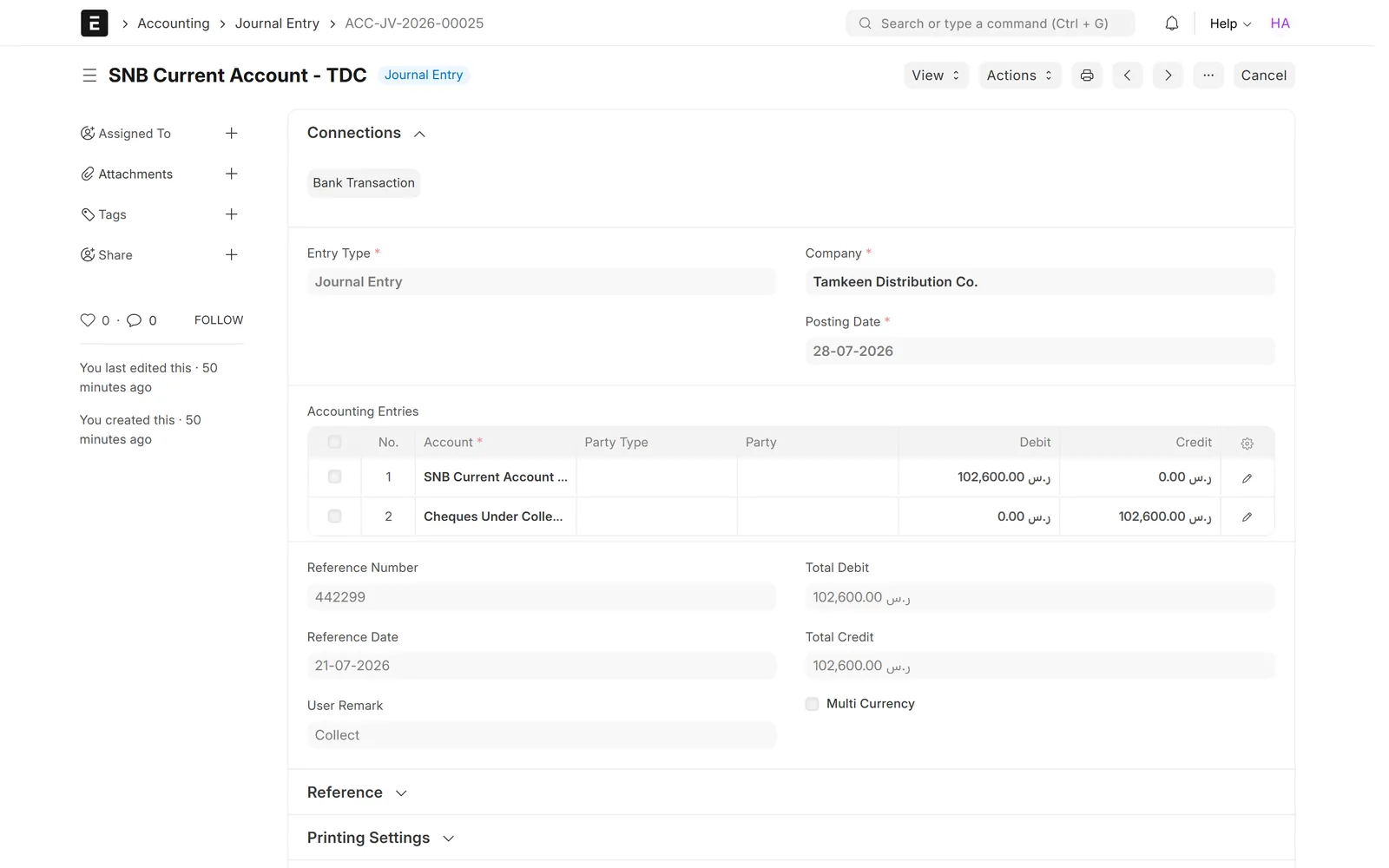
Journal entry debiting the bank account and crediting Cheques Under Collection, with the cheque number as reference
The journal entry posted when a cheque is collected

Accounting & control

A clear accounting model

Your ledger shows where every cheque sits.

  • Received cheques start in Cheques Received
  • Deposited cheques move to Cheques Under Collection
  • The bank is debited only when a cheque is collected
  • Issued cheques sit in Notes Payable until cashed
Journal entry debiting the bank account and crediting Cheques Under Collection, with the cheque number as reference
The journal entry posted when a cheque is collected

Accounting & control

Guided action dialogs with dated postings

Each action opens a dialog with the cheque details.

  • Cheque details shown before you post
  • Pick the bank or party from configured options
  • Enter the actual posting date when enabled
  • Dates before the last action or in the future are refused
Collect Cheque dialog showing the cheque details, three bank account cards with one selected, and a posting date that must be on or after the last action
Collect a cheque into the bank account you choose

Follow-up

Dashboard and cheque reports

See the state of every cheque on one page.

  • Counts and values by status
  • Ageing from not due to over 90 days
  • Top customers and suppliers, and due dates for the next 30 days
  • Status report with each cheque's journal entries
Dashboard cards showing cheque ageing from not due to over 90 days, the top five customers and suppliers by cheque value, and upcoming due dates
Ageing buckets, top customers and suppliers, and due dates for the next 30 days

Follow-up

Overdue cheque reminders

A daily task flags cheques around their due date.

  • Pending, under-collection and endorsed cheques
  • Notifications for the roles you choose
  • Days before or after the due date are configurable
  • Optional email
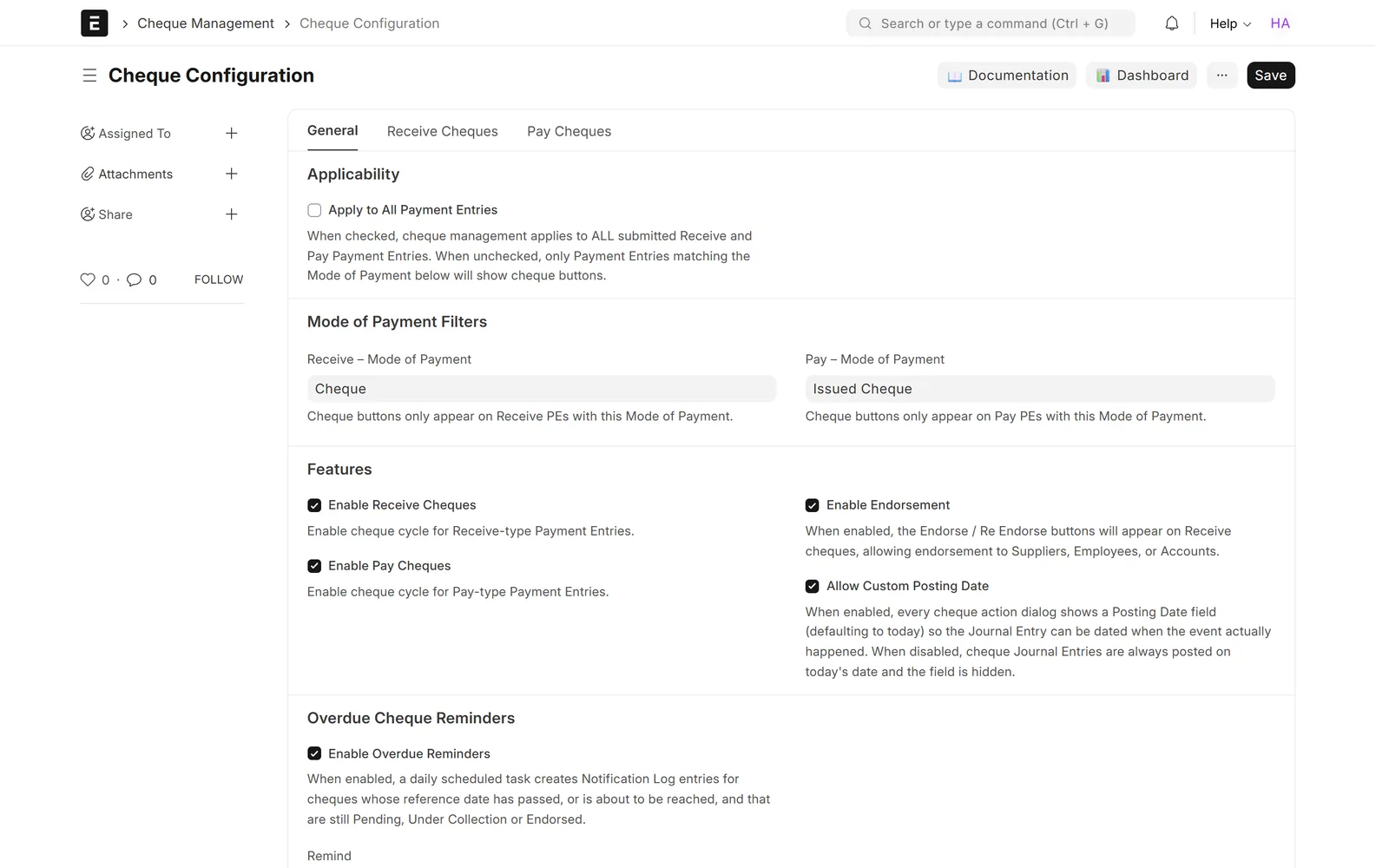
Cheque Configuration general tab with the receive and pay modes of payment, enabled features and overdue reminder settings
One configuration for receive, pay, endorsement and reminders

Screens show demo data.

Challenges vs. solutions

Common challenges, and how Cheque Management answers each one

ChallengeHow Data Value solves itTraditional approach
Cheques tracked in a spreadsheet next to the ERPEach cheque is an ERPNext Payment Entry with its own status and action buttonsA separate sheet updated by hand and checked against the ledger
Knowing which cheques are still at the bankDeposited cheques sit in Cheques Under Collection; the dashboard shows counts and values by statusChecking deposit slips and bank statements by hand
Recording a bounced chequeReturn From Bank moves it to Returned Cheques; resend, endorse or return it, with a warning listing invoices to unreconcileReversal entries written by hand
Endorsing a customer's cheque to a supplierAn endorse dialog for suppliers, employees or accounts; the party is recorded on the journal entry lineA manual journal entry and a note in the cheque register
Missing due datesDaily reminders to the roles you choose, plus due dates for the next 30 days on the dashboardPersonal calendars and memory
Postings with the wrong dateThe real posting date is entered in the dialog; dates before the last action or in the future are refusedBack-dated entries that nobody reviews

Why Data Value

Why teams choose it

Inside the Payment Entry

Cheques stay on the standard ERPNext Payment Entry, so invoices, allocations and party balances work as usual.

Balanced entries

Every step posts a balanced journal entry linked to its cheque, and cancelling the Payment Entry cancels them.

Status-based actions

Each action is allowed only from the right status, so a cheque cannot skip a step.

Dashboard and ageing

Counts, values, ageing buckets, top parties and the next 30 days of due dates in one place.

Built-in safeguards

Accounts are checked on save, on submit and at action time, double clicks are blocked, and multi-currency cheques use the Payment Entry rates.

Set up by Data Value

Our own app, set up for your banks by a Frappe Certified Gold Partner with 120+ clients.

How it works

From setup to daily use

  1. Data Value sets up your cheque accounts and fills in the Cheque Configuration for your banks.
  2. Your team records each cheque as a normal ERPNext Payment Entry with the cheque number and due date.
  3. From the Payment Entry, send it to the bank, collect, endorse or return it; each click posts its journal entry.
  4. Follow up daily with the dashboard, the status report and overdue reminders.

FAQ

Frequently asked questions

Does it replace ERPNext's Payment Entry?

No. It extends the standard Payment Entry with a cheque status, action buttons and linked journal entries, so invoices, allocations and party balances work exactly as they do in ERPNext.

Can we endorse a customer's cheque to a supplier?

Yes. Endorsement can go to a supplier, an employee or a ledger account, and a bounced endorsed cheque can be returned, resent to the bank or endorsed again.

What happens when a cheque bounces?

Use Return From Bank to move it to your Returned Cheques account, then resend it, endorse it or return it to the customer. Invoice allocations are not reopened automatically; the app warns you which invoices to unreconcile.

Will we be reminded of cheques that are due?

Yes, when reminders are enabled. A daily task notifies the roles you choose a set number of days before or after the due date, with optional email.

Does it work with several banks and currencies?

Yes. You configure the bank accounts allowed for each step and pick one in the dialog. Multi-currency cheques post each leg in the account's currency at the Payment Entry's exchange rates.

Does it connect to our bank or print cheques?

No. There is no bank integration or cheque printing. Your team records each bank movement through the action dialogs, and every step is posted to the ledger.

See it with your own data

Book a demo and our team will walk you through the system and how it fits your business.

Free demo · No commitment