Skip to content

Maintenance & facilities · Egypt, Saudi Arabia & MENA

Run every facility, job and contract from one operations console

Data Value's CAFM / CMMS gives your operations team one console for the whole FM operation: requests and dispatch, work orders, planned maintenance, assets, contracts and SLAs, materials and purchasing, quality and reporting.

Technicians work from their phones, customers follow their own jobs in a portal, and stock, purchasing and invoicing stay in ERPNext.

  • Live dispatch board with SLA flags
  • Planned maintenance on schedule
  • Asset register with QR passports
  • Technician app on the phone
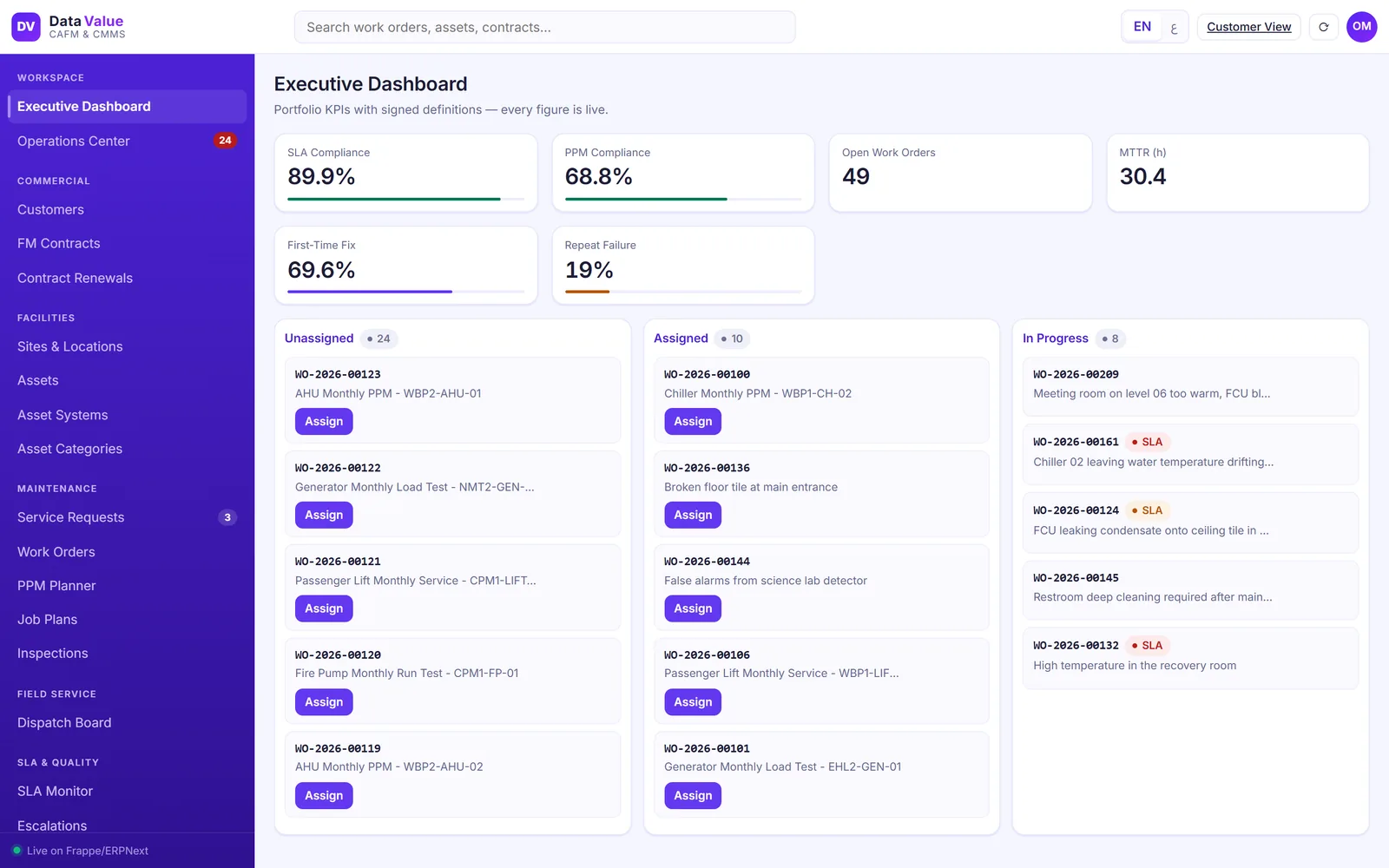
Executive dashboard with SLA compliance, PPM compliance, open work orders, mean time to repair, first-time fix and repeat failure above unassigned, assigned and in-progress work orders
Operations console: portfolio KPIs above the live job pipeline. Screens show demo data.

Who it is for

Built for the people who run it every day

  • Facility management service providers
  • Property, mall and hotel operators
  • Hospitals, clinics and schools
  • Business parks and logistics sites
  • In-house maintenance departments
  • FM operations and contract managers

Industry

Part of ERPNext for Real Estate & Contracting

Facility management alongside our property and contracting solutions for owners, operators and contractors.

Explore the industry page →

What you get

Everything the operations team runs, in one console

19 capabilities in 9 groups, each shown next to its screen in the real system.

Operations control

Executive dashboard for the whole portfolio

See how the operation is performing before you open a single job.

  • SLA and PPM compliance across all contracts
  • Open work orders, mean time to repair and first-time fix
  • Repeat failures flagged for follow-up
  • The live job pipeline under the KPIs, ready to assign
Executive dashboard with SLA compliance, PPM compliance, open work orders, mean time to repair, first-time fix and repeat failure above unassigned, assigned and in-progress work orders
Operations console: portfolio KPIs above the live job pipeline

Operations control

A live dispatch board for every open job

Supervisors see every job by stage and assign from the board.

  • Lanes from unassigned to completed
  • Red and amber flags on jobs at risk of missing their SLA
  • Assign to a technician in one step
  • Counters for new requests, QA and customer sign-off in the menu
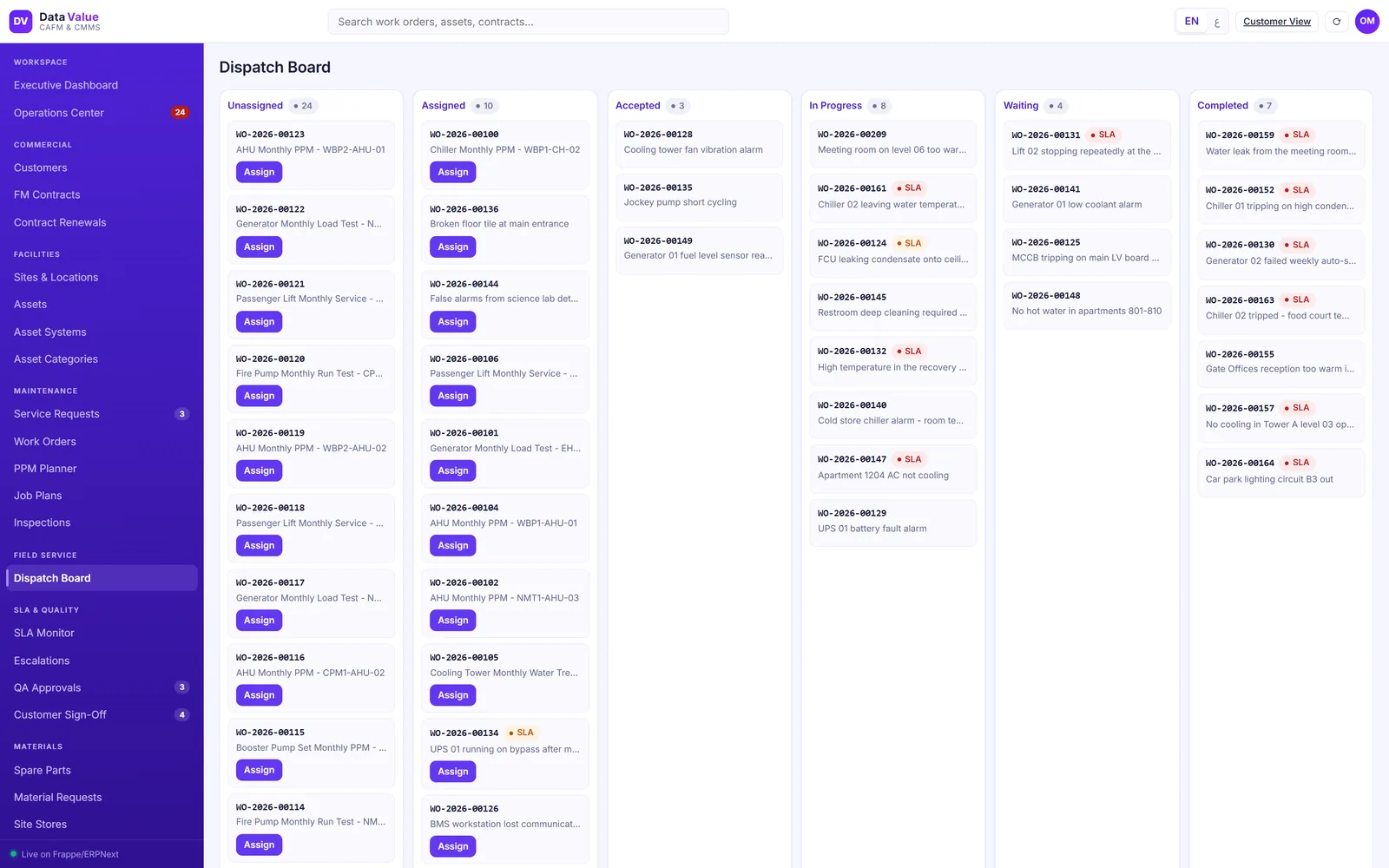
Dispatch board with six lanes from unassigned to completed, assign buttons and red and amber SLA flags on work order cards
Dispatch board: every open job by stage, with SLA warnings

Work orders & dispatch

Service requests from every channel

Every request lands in one queue, whatever the channel.

  • Portal, phone, email, walk-in and internal staff
  • Triage, reject with a reason or convert to a work order
  • Customer, site, asset and priority carried onto the job
  • The SLA clocks start as soon as the job is raised
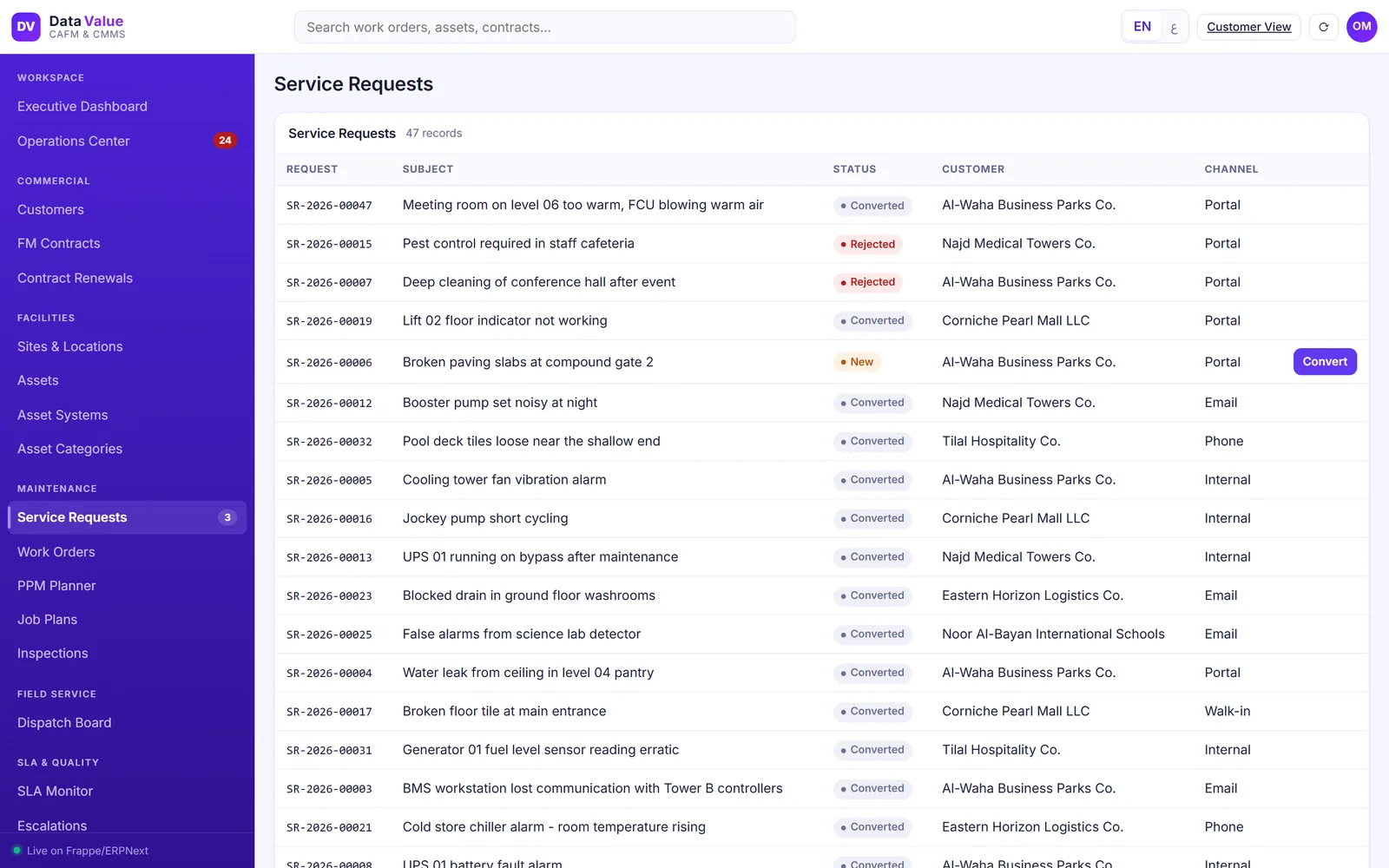
Service request list with subject, status, customer and channel, and a convert button on a new request
Service requests from the portal, phone, email, walk-in and internal staff in one queue

Work orders & dispatch

A controlled work-order lifecycle with quality checks

Jobs move only through defined steps, from assignment to close.

  • Assign, accept, start, hold and complete
  • Supervisor QA approves or sends the job back
  • Customer sign-off before the job closes
  • Every step logged with the user and time
QA approvals list of completed work orders with approve and reject buttons
Quality approval queue: completed jobs wait for the supervisor before handover

Work orders & dispatch

A service report that proves the work

Each job ends with a report the customer can keep.

  • Checklist results and readings
  • Materials used and failure diagnosis
  • Outcome of each SLA commitment
  • QA approval and the customer signature
Printed service report with checklist results, materials used, failure diagnosis, service level outcomes, quality inspection and the customer acknowledgement signature
Service report: checklist, materials, failure diagnosis, SLA outcome and customer sign-off

Planned maintenance

Planned preventive maintenance that schedules itself

Set the plan once per asset and the visits follow.

  • Job plans with tasks, skills, materials and safety notes
  • Monthly, quarterly and semi-annual frequencies
  • Visits become work orders when they fall due
  • Overdue and missed visits flagged automatically
PPM planner list of planned visits by asset tag and due date, marked completed on time, overdue or missed
PPM planner: every planned visit with its due date and outcome

Planned maintenance

A visit calendar and compliance you can show

Every visit sits on a calendar with its result.

  • Month view by asset
  • Completed, scheduled, overdue and missed counts
  • PPM compliance per customer and portfolio
  • A failed checklist item can raise a corrective job
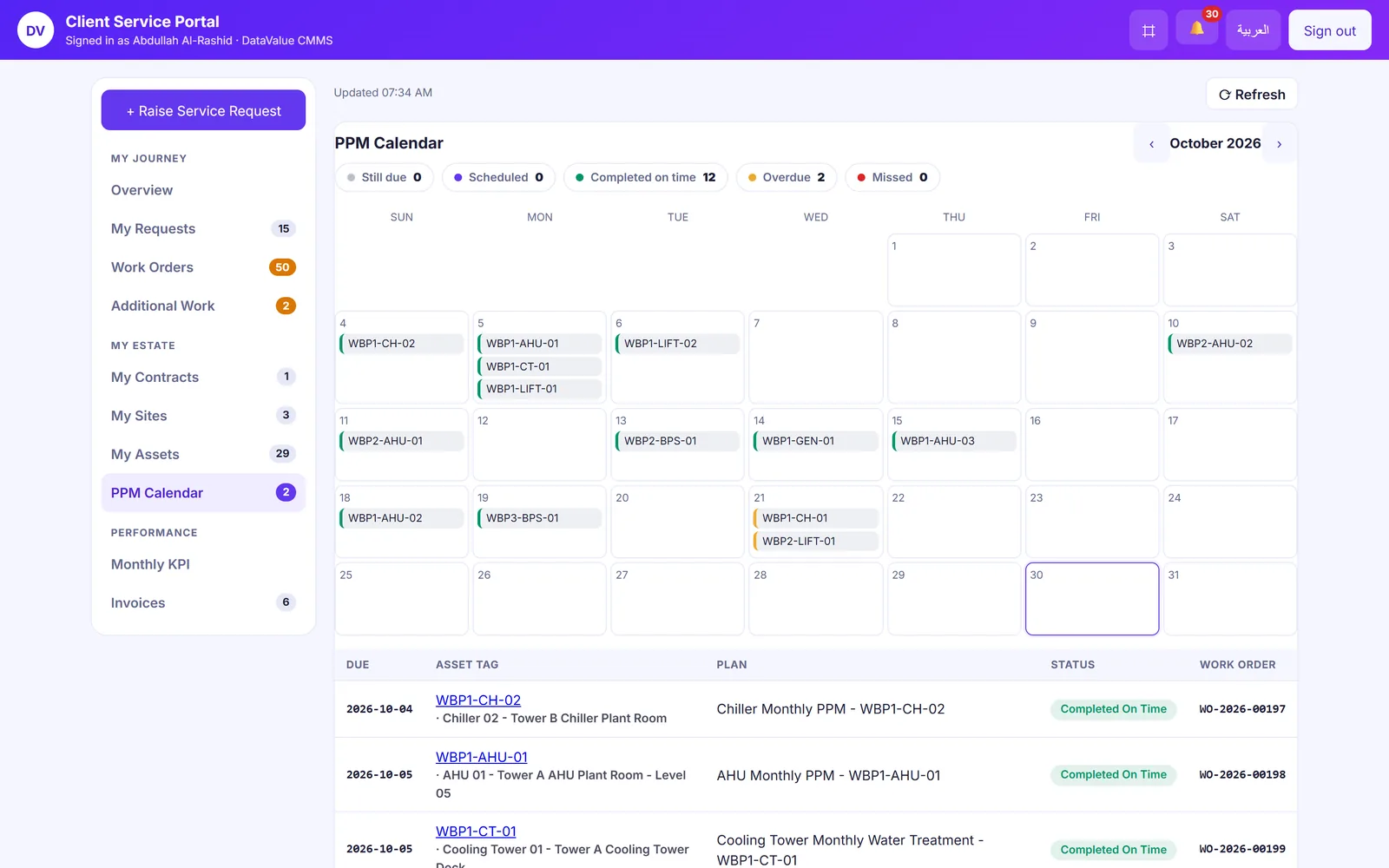
Monthly calendar of planned maintenance visits by asset tag, with completed, scheduled, overdue and missed counts
Monthly PPM calendar with completed, scheduled, overdue and missed visits

Assets

One asset register across every site

Hold every asset with its place in the building and its condition.

  • Sites, buildings, floors and rooms in a location tree
  • Systems, categories and criticality
  • Components, spares, meters and readings
  • Status from operational to down, and transfers between locations
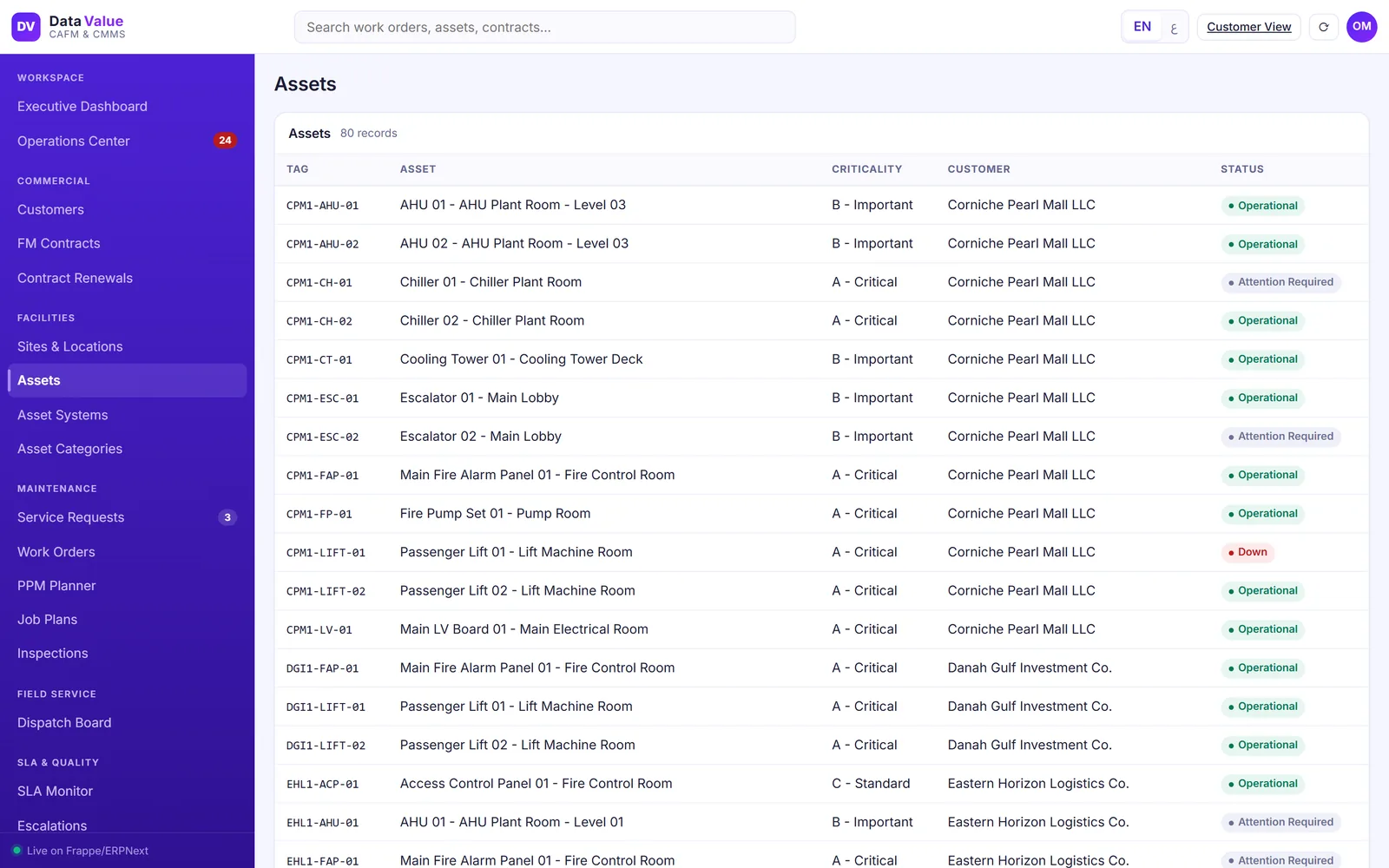
Asset register listing asset tags, names and locations, criticality, customer and status such as operational, attention required or down
Asset register across every site, with criticality and live status

Assets

A QR passport for every asset

Scan the label on site and the asset opens with its details.

  • Category, make, model and criticality
  • Meters and their latest readings
  • Components and spare parts
  • Asset surveys when a new site is taken over
Chiller asset passport listing category, criticality, site, manufacturer, model and meters next to a QR code
Asset passport with a QR code that opens it on site

Contracts & SLA

FM contracts with their scope and renewals

Every job is tied to the contract that governs it.

  • Services, sites, teams and SLA terms per contract
  • Billing schedules and amendments
  • Renewal watch for contracts nearing expiry
  • Hard, soft and total FM contracts side by side
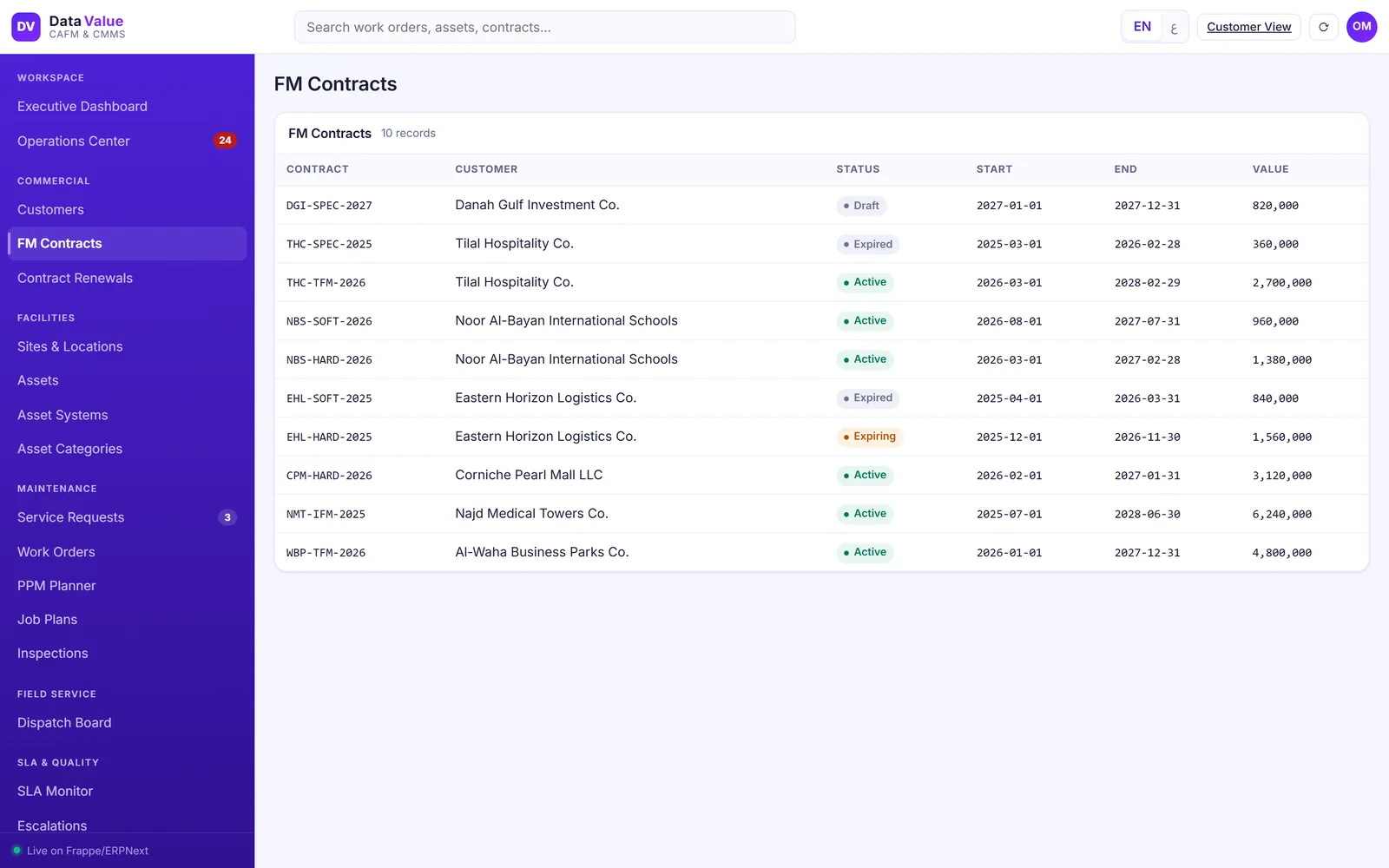
FM contract list with customer, active, expiring, expired and draft statuses, start and end dates
FM contracts by customer, with term, status and renewal watch

Contracts & SLA

SLA clocks that escalate before a breach

Commitments are timed on the contract working calendar.

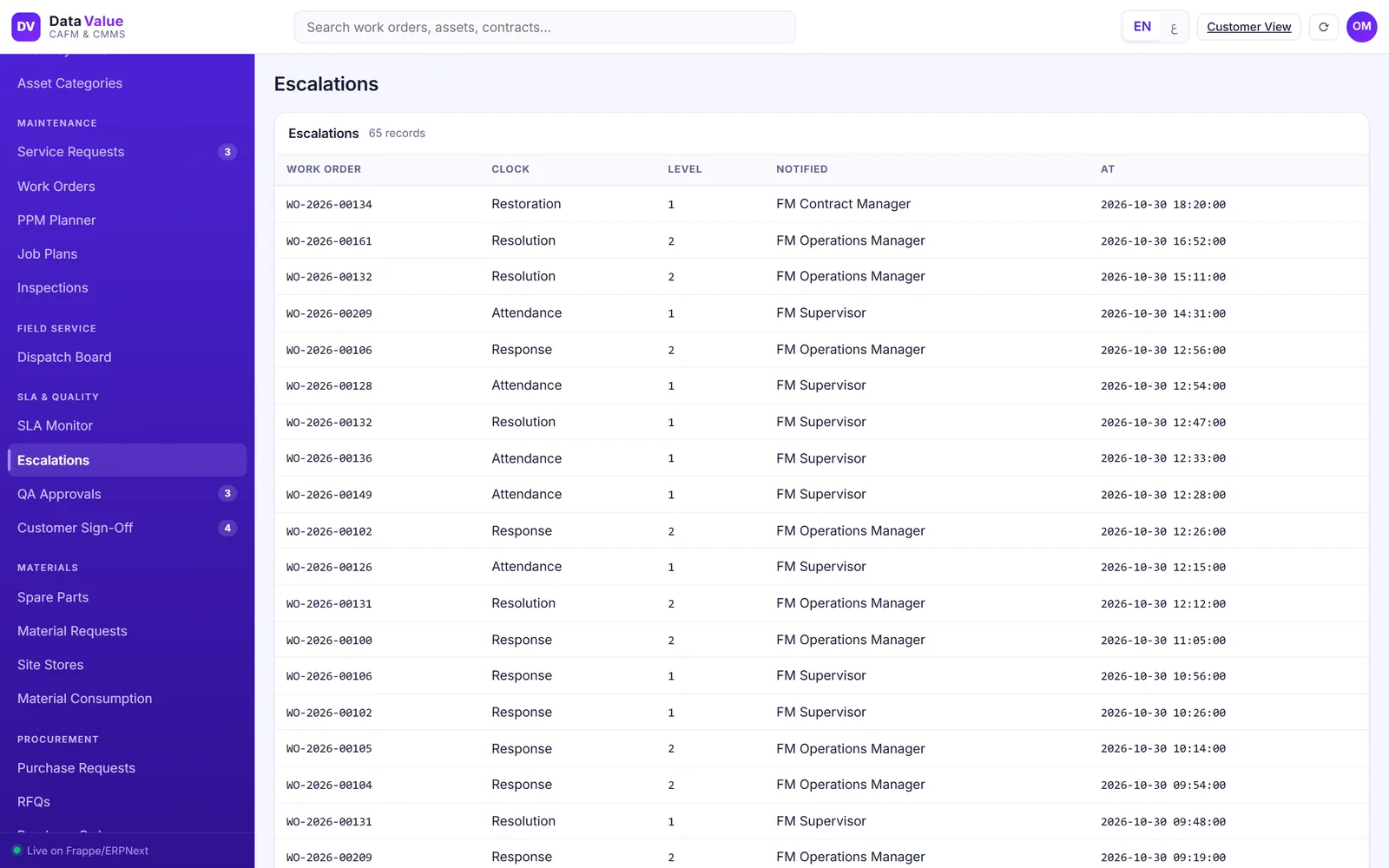
  • Response, attendance, restoration and resolution clocks
  • Targets by priority and type of work, with agreed pauses
  • Staged alerts to supervisors and managers as time runs out
  • A full log of every escalation
Escalation log by work order with the SLA clock, escalation level, the role notified and the time
SLA escalations: who was alerted, for which commitment and when

Field technicians

The whole job on the technician phone

Technicians run the job from start to finish on their phone.

  • Safety instructions before work starts
  • Checklists with pass/fail and readings
  • Time, materials and before and after photos
  • Asset QR scanning; a network connection is needed
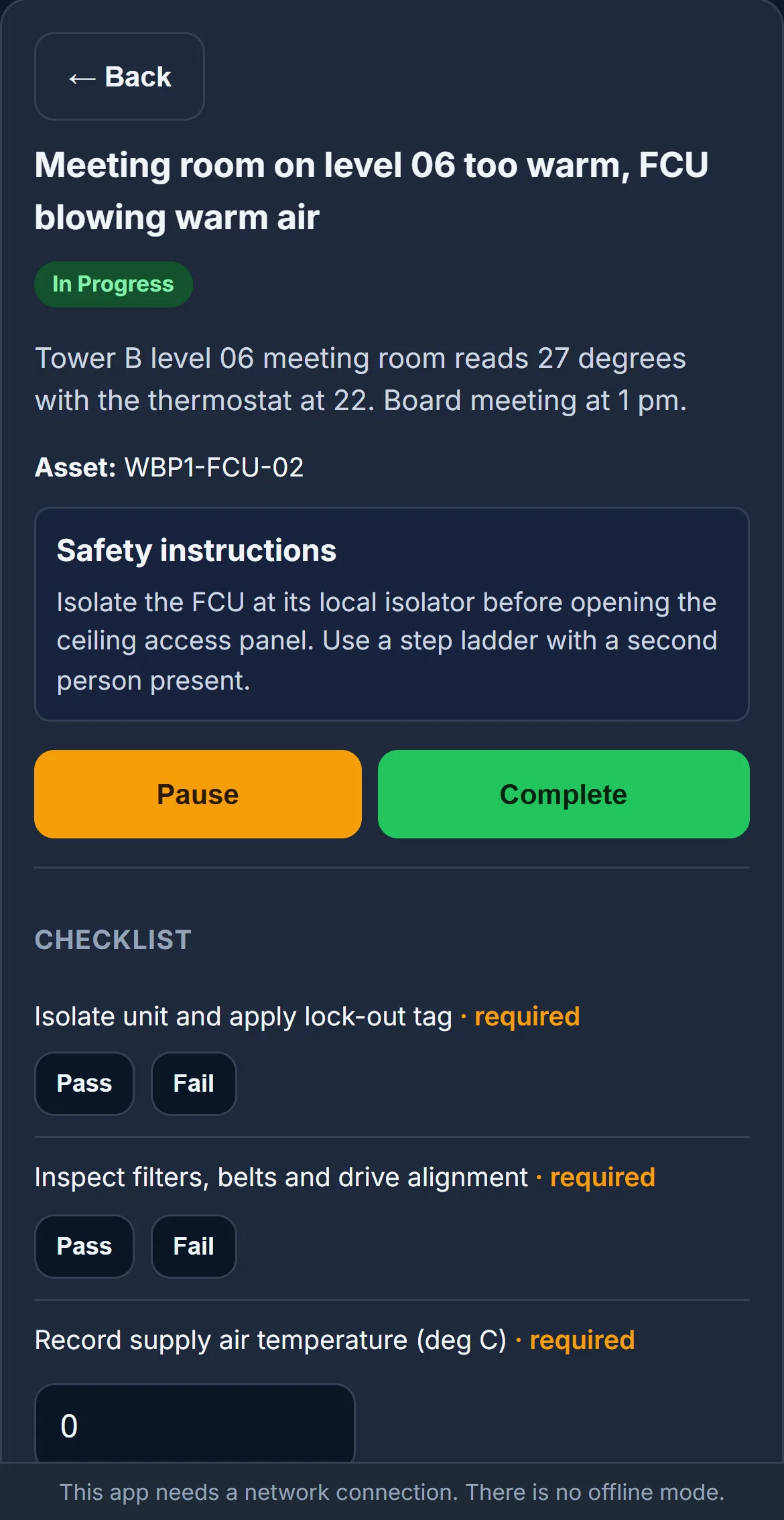
Mobile job screen with the job description, asset tag, safety instructions, pause and complete buttons, and pass/fail and numeric checklist items
Technician app: safety instructions and checklist on the job

Field technicians

A clear list of the day's work

Each technician sees only the jobs assigned to them.

  • Today and all assigned jobs
  • Accept, start, pause and complete from the list
  • Priority and asset on every row
  • English or Arabic, right to left
Mobile list of a technician's jobs for today with asset tags, priorities and status
Technician app: the day's jobs with priority and SLA status

Spare parts & costs

Spare parts, purchasing and job costs

Materials move with the job, and the cost follows it.

  • Spare parts held in central and site stores
  • Material and purchase requests raised from the work order, through RFQs and purchase orders
  • Issues and returns recorded against the job
  • Subcontracted work and contract invoices in ERPNext
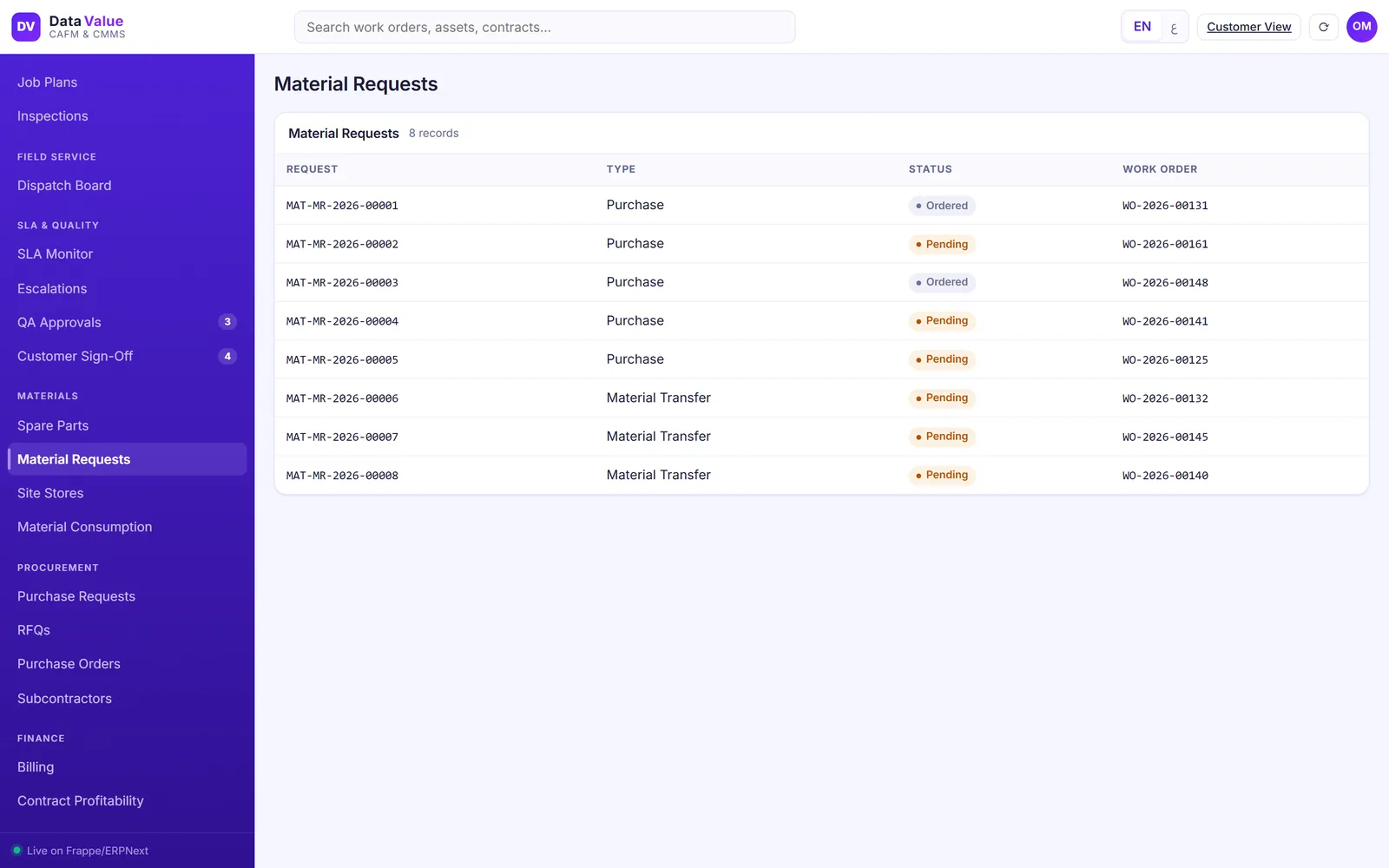
Material request list with purchase and transfer requests, their status and the work order each one serves
Material and purchase requests raised from the work order

Client portal

A portal where each customer sees their own operation

Customers stop calling for status.

  • Open requests and jobs in progress
  • SLA and PPM compliance for their sites
  • Assets, contracts, reports and invoices
  • Only their own records, in English or Arabic
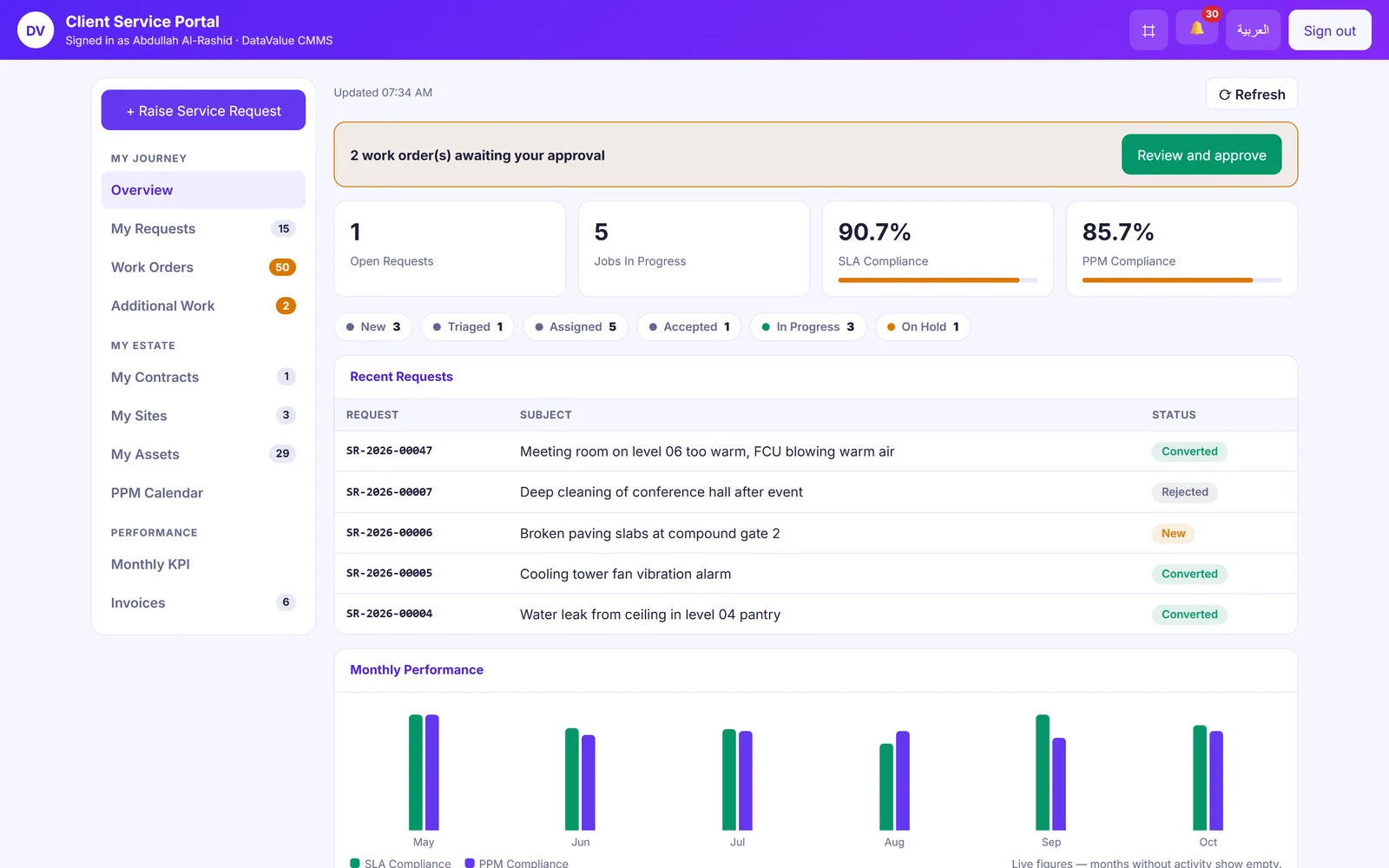
Customer portal dashboard with KPI tiles, status chips, recent requests and a monthly performance chart
Customer portal: open requests, jobs in progress, SLA and PPM compliance at a glance

Client portal

Live tracking of every request

Customers raise a request and follow it to sign-off.

  • Raise requests with photos
  • A timeline of each step
  • Live status of each SLA commitment
  • Sign off with a signature, ask for rework and rate the job
Request tracking page showing response and attendance met, restoration and resolution clocks running, and a progress timeline
Live request tracking with the SLA status of each commitment

Client portal

Additional work agreed before it starts

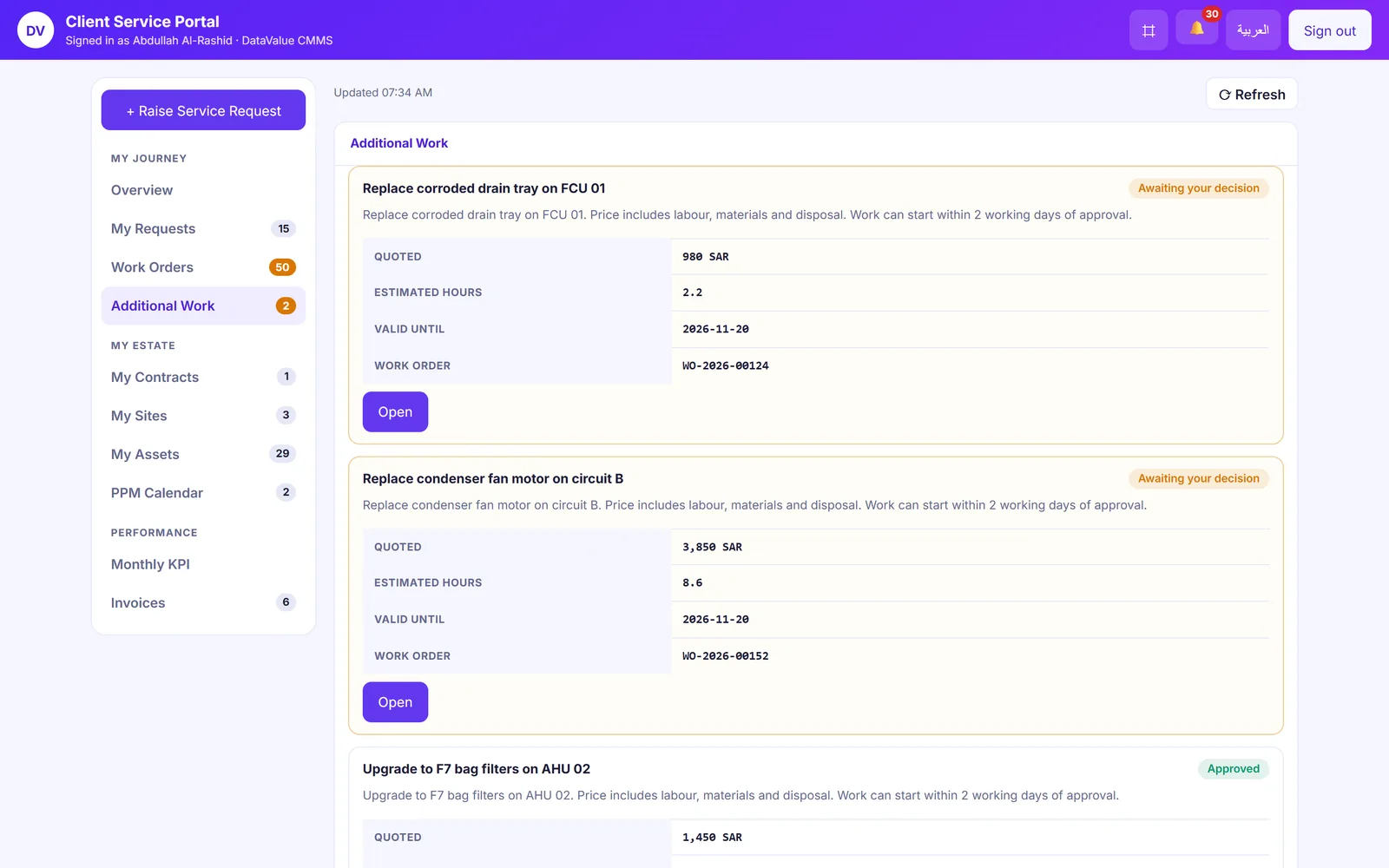
Extra work goes to the customer for a decision first.

  • Priced variations with estimated hours
  • Approve or decline in the portal
  • A validity date on every quote
  • The decision kept with the job
Additional work quotes, two awaiting the customer decision and one approved, with estimated hours and validity dates
Priced additional work sent to the customer for approval

Reports & dashboards

SLA and PPM reports you can stand behind

Every figure traces back to the jobs behind it.

  • Each SLA clock on each job, met or breached
  • PPM compliance by customer and month
  • Monthly customer reports in PDF
  • Dashboards for work orders by status, priority and channel
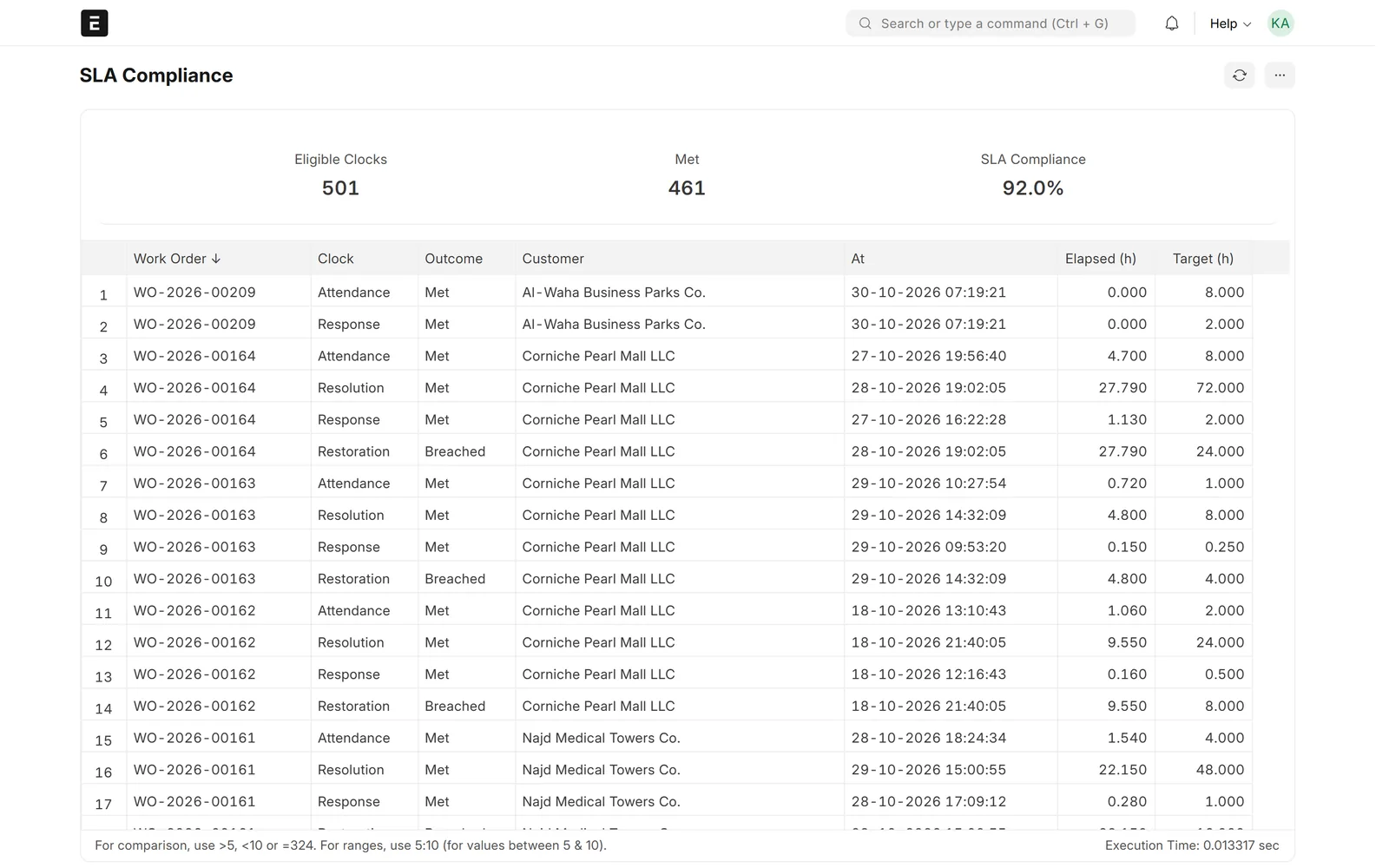
SLA compliance report with eligible clocks, clocks met and the compliance rate above a table of work orders, clocks, outcomes, customers, elapsed and target hours
SLA compliance report: every clock on every job, met or breached

Reports & dashboards

Customer satisfaction on every job

Ratings come in as jobs close.

  • A 1 to 5 rating after sign-off
  • Comments kept with the job
  • Ratings by customer over time
  • Average rating in the monthly report
Customer report list with work order, rating from 1 to 5, customer and date
Customer ratings on every closed job

Screens show demo data.

Challenges vs. solutions

Common challenges, and how Facility Management (CAFM / CMMS) answers each one

ChallengeHow Data Value solves itTraditional approach
No single view of the operationOne console with portfolio KPIs and a live board of every open jobStatus gathered from calls and spreadsheets
Jobs that wait for someone to pick them upA dispatch board with unassigned lanes and SLA flags, assigned in one stepJobs handed out by phone or chat groups
SLA breaches found after the factClocks on the contract calendar with staged escalations before the deadlineBreaches discovered in the month-end report
Planned visits that slipJob plans generate the visits and work orders, and flag overdue and missed visitsPaper schedules and wall calendars
Evidence of the work doneChecklists, photos, materials, QA and customer signature in one service reportPaper job cards
Asset history spread across filesOne register by site and location, with a QR passport for every assetAsset lists in spreadsheets
Materials and costs outside the jobRequests, purchases and issues raised from the work order, with stock and invoices in ERPNextSeparate maintenance and accounting systems

Why Data Value

Why teams choose it

One console for operations

Dashboard, dispatch, requests, PPM, assets, contracts, materials and reports in one place.

SLAs on working time

Clocks follow the contract calendar, exclude agreed pauses and escalate in stages.

A controlled lifecycle

Jobs change status only through defined steps, with QA and customer sign-off, and each step is logged.

Nothing to install

Technicians sign in from their phone browser to a mobile web app.

English and Arabic

Operations console, technician app and customer portal switch languages with a right-to-left layout.

Finance stays in ERPNext

Stock, purchasing and contract invoices are standard ERPNext documents.

How it works

From setup to daily use

  1. Set up the contractload the customer sites, locations and assets, with the SLA terms and working calendar that apply.
  2. Plan the maintenanceattach job plans to assets, and the planned visits and work orders follow on their dates.
  3. Capture and dispatchrequests from every channel become work orders that supervisors assign from the dispatch board.
  4. Work in the fieldtechnicians run the job on their phone with checklist, photos, time and materials, while the SLA clocks run and escalate.
  5. Close and reportQA, customer sign-off and rating close the job; dashboards, monthly reports and invoices come from the same data.

FAQ

Frequently asked questions

What does the operations team work in?

An operations console with an executive dashboard, a dispatch board and screens for service requests, work orders, planned maintenance, assets, contracts, SLA escalations, quality approvals, materials, purchasing and reports. The full ERPNext desk is there too.

Does it run on ERPNext?

Yes. It is a Frappe app that requires ERPNext. Stock issues, purchase requests and orders, and contract invoices are standard ERPNext documents.

How are SLAs measured and escalated?

Each contract has SLA terms with targets by priority and type of work. Response, attendance, restoration and resolution are timed on the contract working calendar, agreed pauses are excluded, and alerts go to supervisors and managers in stages as the time runs out.

Do technicians need to install an app?

No. Technicians sign in from their phone browser to a mobile web app for jobs, checklists, photos, time, materials and QR scanning. It needs a network connection; there is no offline mode.

Can our customers see their own jobs?

Yes. Each customer user signs in to a portal that shows only their own requests, work orders, assets, contracts, planned maintenance, reports and invoices, and approves additional work there.

Is it available in Arabic?

Yes. The operations console, the technician app and the customer portal switch between English and Arabic with a right-to-left layout.

See it with your own data

Book a demo and our team will walk you through the system and how it fits your business.

Free demo · No commitment